Skio
Step 1: Go to Your Skio Dashboard
- Navigate to your Skio dashboard by visiting: https://dashboard.skio.com/
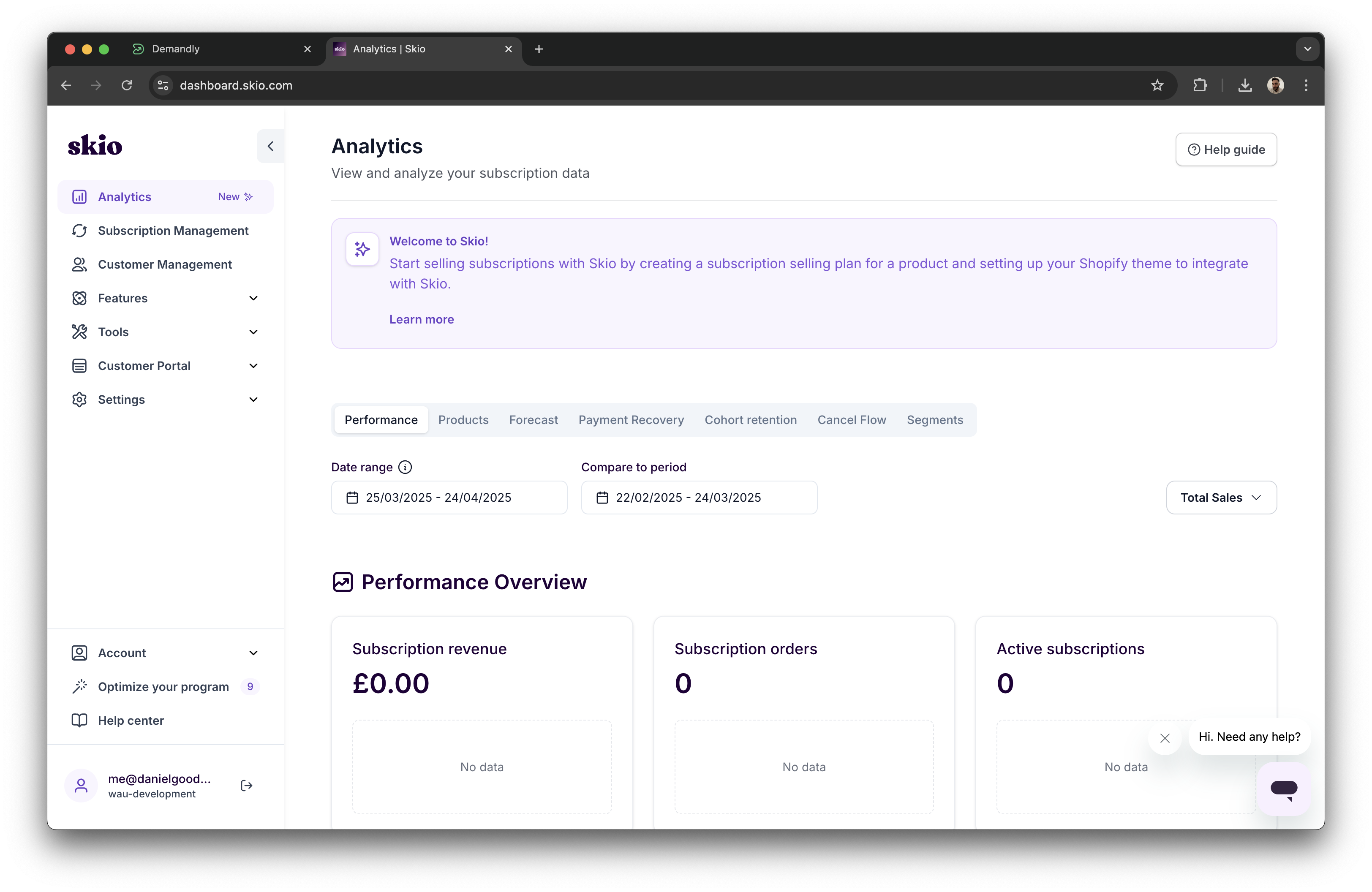
Step 2: Click on “Account” in the Left Menu
- Find and click on the “Account” option located in the left-side navigation menu.
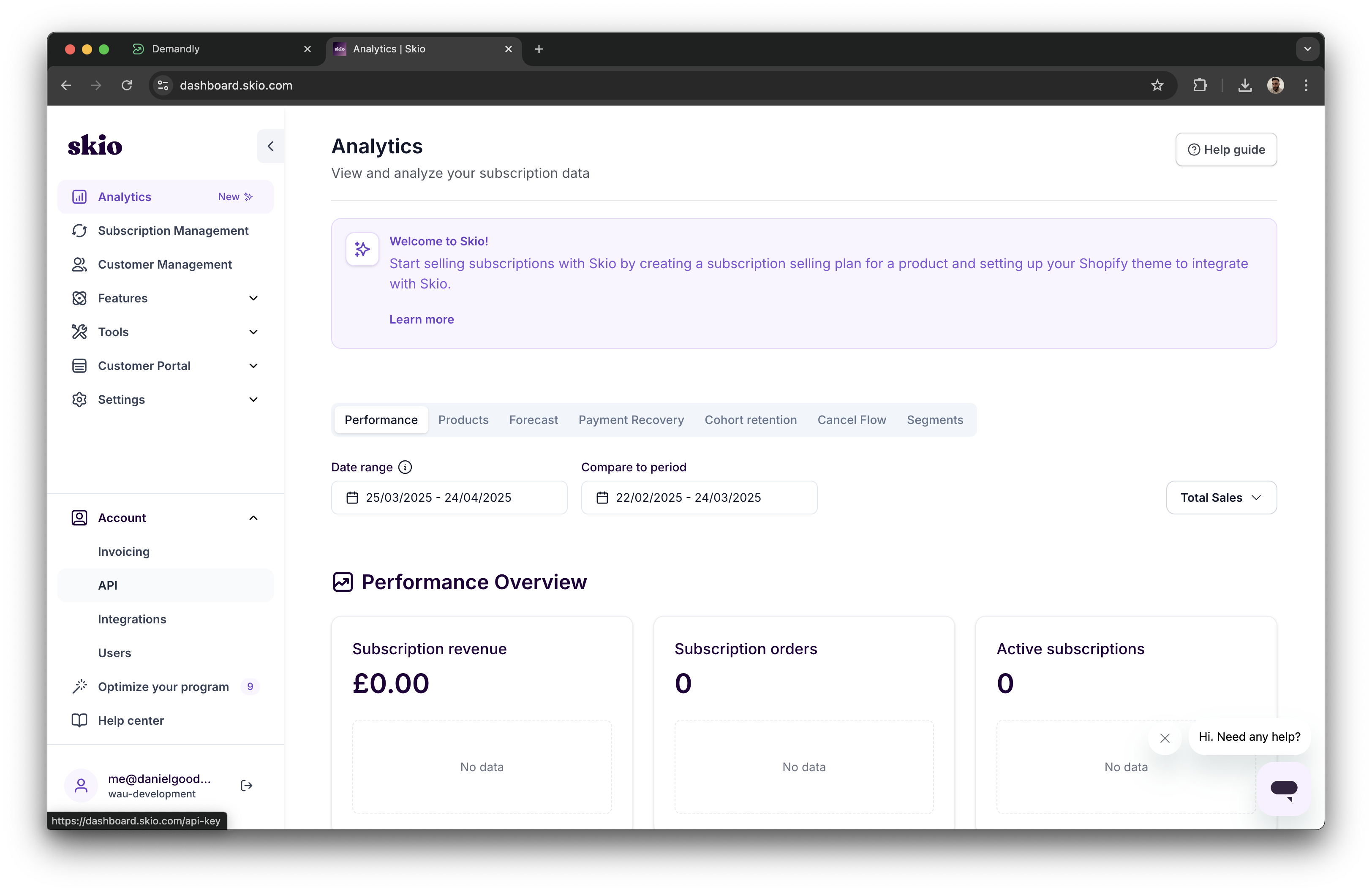
Step 3: Click on “API” Under the Account Button
After clicking on Account, look for the “API” option underneath and click on it.
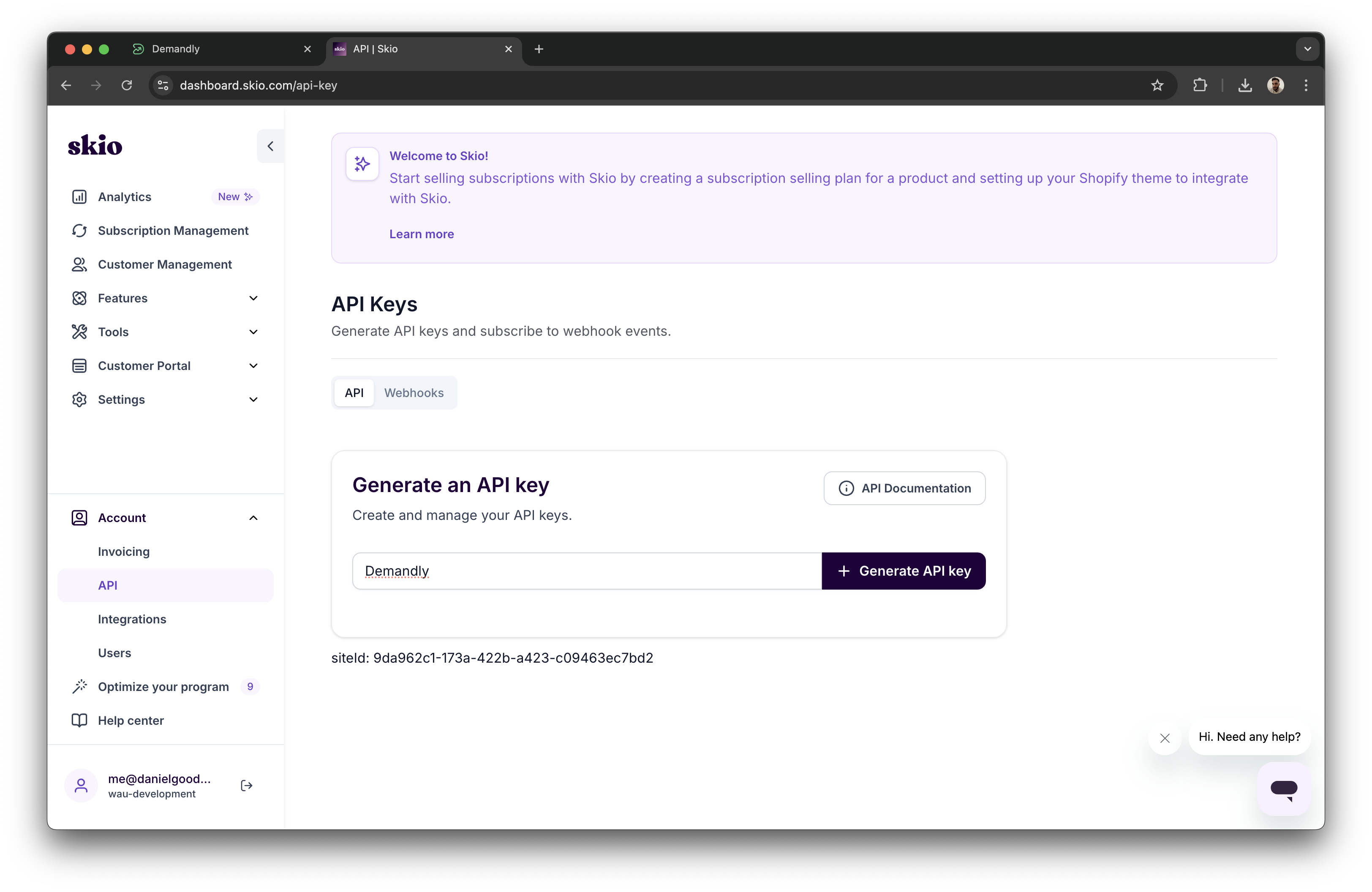
Step 4: Fill in the Key Name and Generate API Key
Enter a name for your API key (e.g., “Demandly Integration”) and click the “Generate API Key” button.
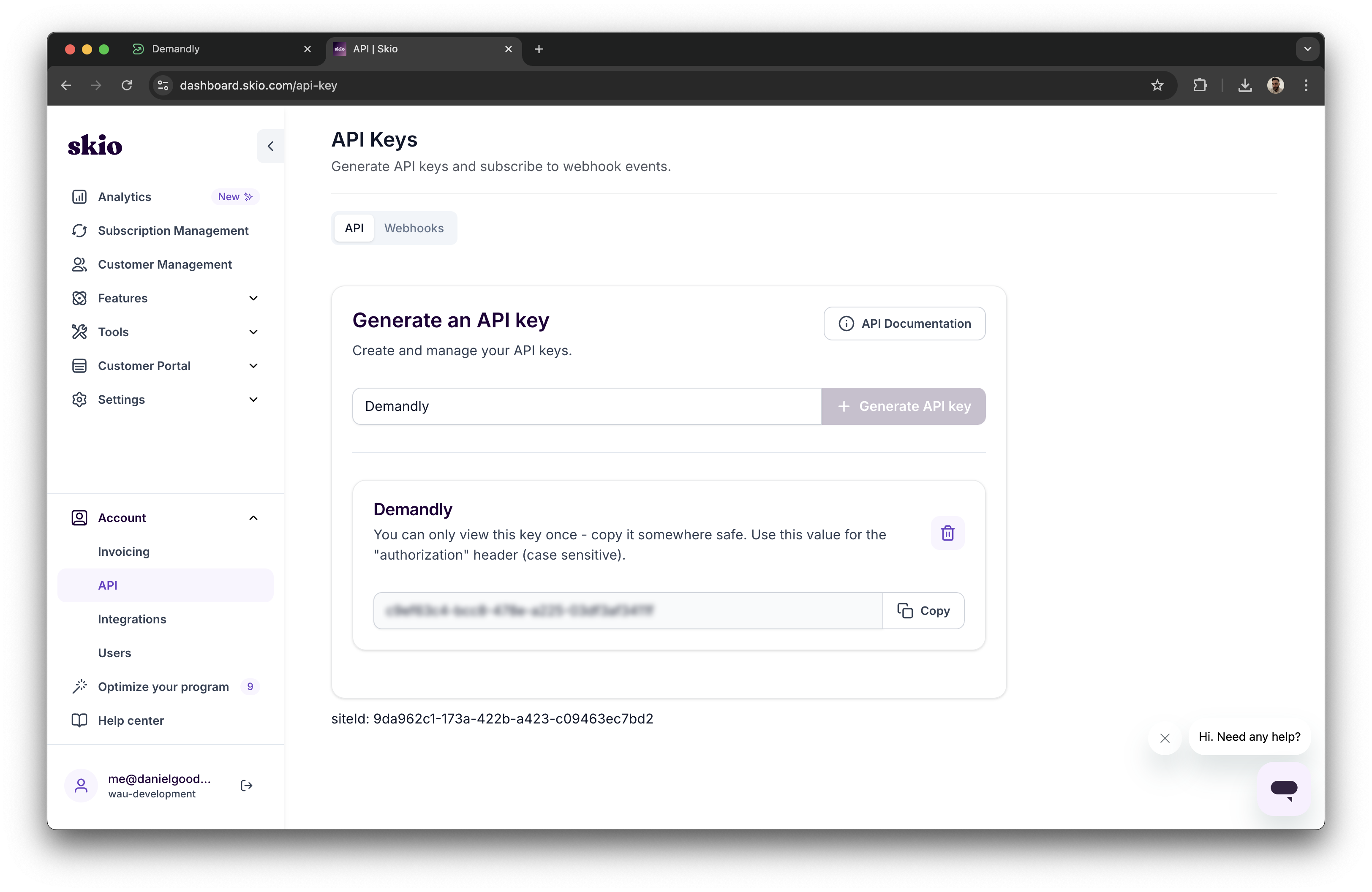
Step 5: Copy the Generated Key
Once the key is generated, copy it to your clipboard. Note that this key will only be shown once.
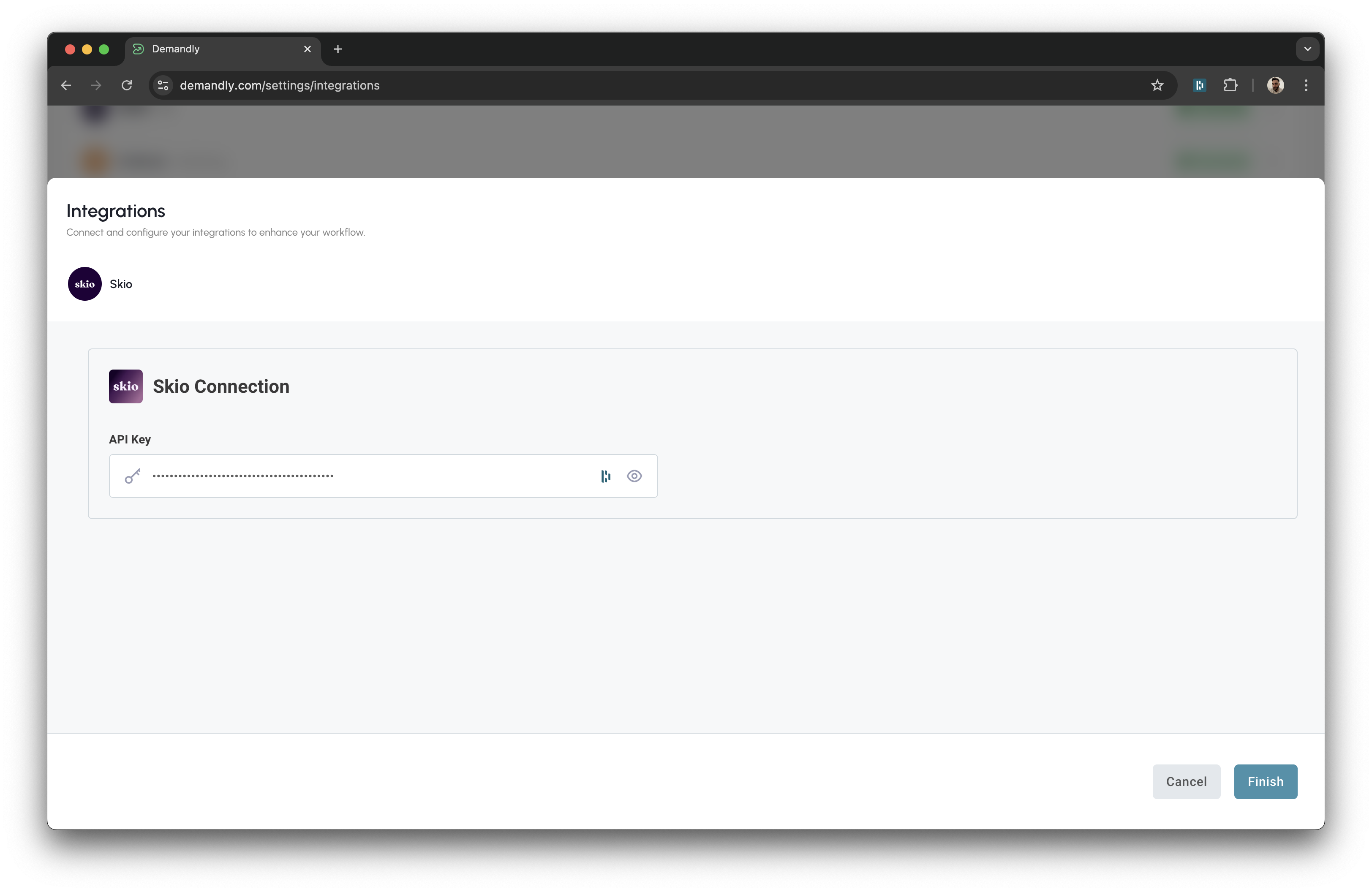
Step 6: Paste the Key in the “API Key” Input in Demandly
Return to the Demandly tab and paste the copied API key into the “API Key” input field. Click “Finish” once done.
Step 7: Verify Your Integration
You’ll now see a confirmation screen showing your Skio integration status as “Running”. This confirms everything is working properly. Close this window by clicking the X in the top right corner to return to your integrations page.
That’s it! Your Demandly account is now successfully connected to your Skio account.
If you need to make changes to this integration later, you can return to the integrations page and reconfigure or deactivate it as needed.
Need Help?
If you’re experiencing issues with your integration:
- Contact our support team at support@demandly.com