Shipfusion
Step 1: Get Your Username
-
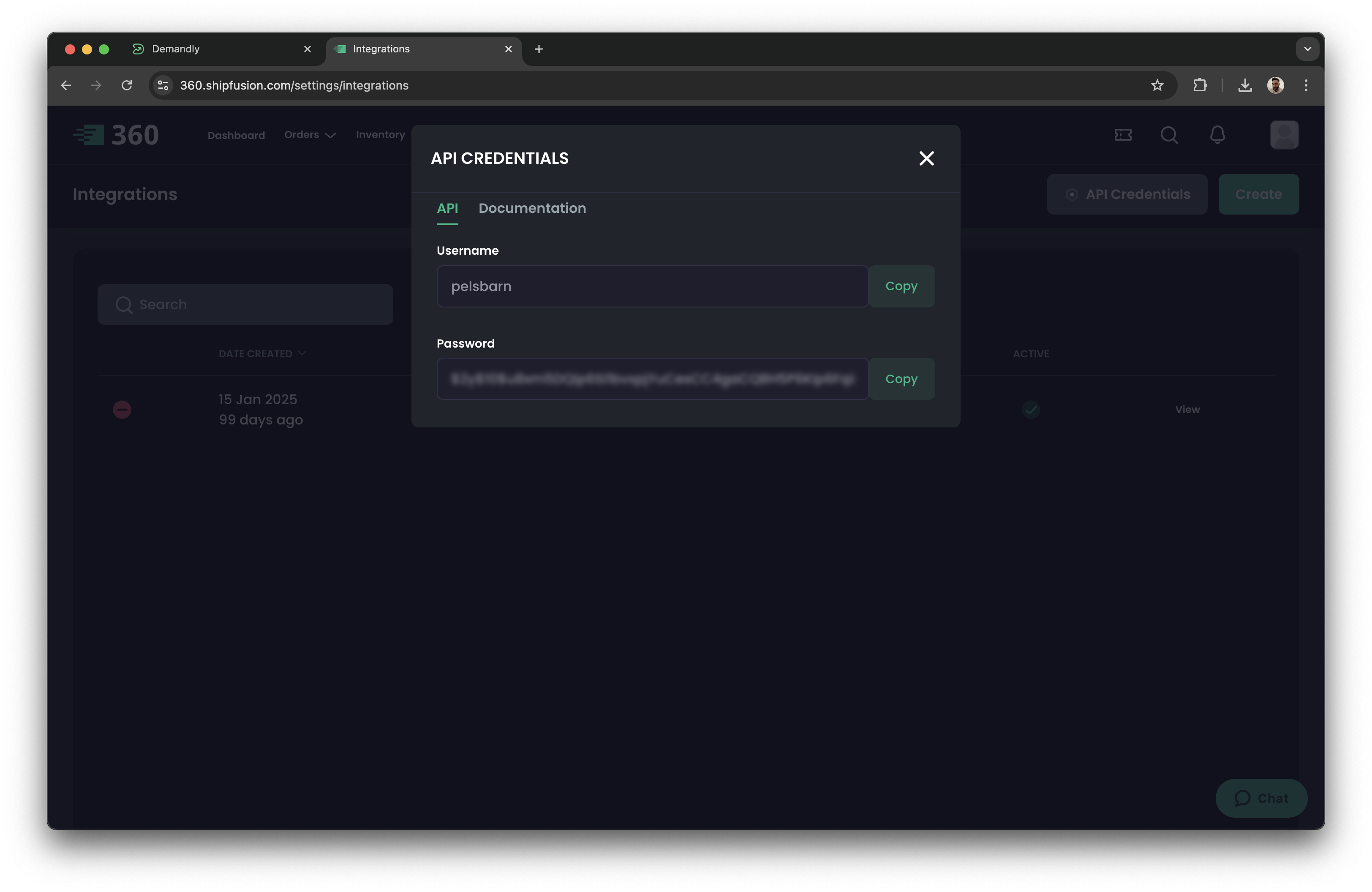
Go to this page: https://360.shipfusion.com/settings/integrations
-
Click “API Credentials” at the top right.
-
Copy the “Username” from the modal.
-
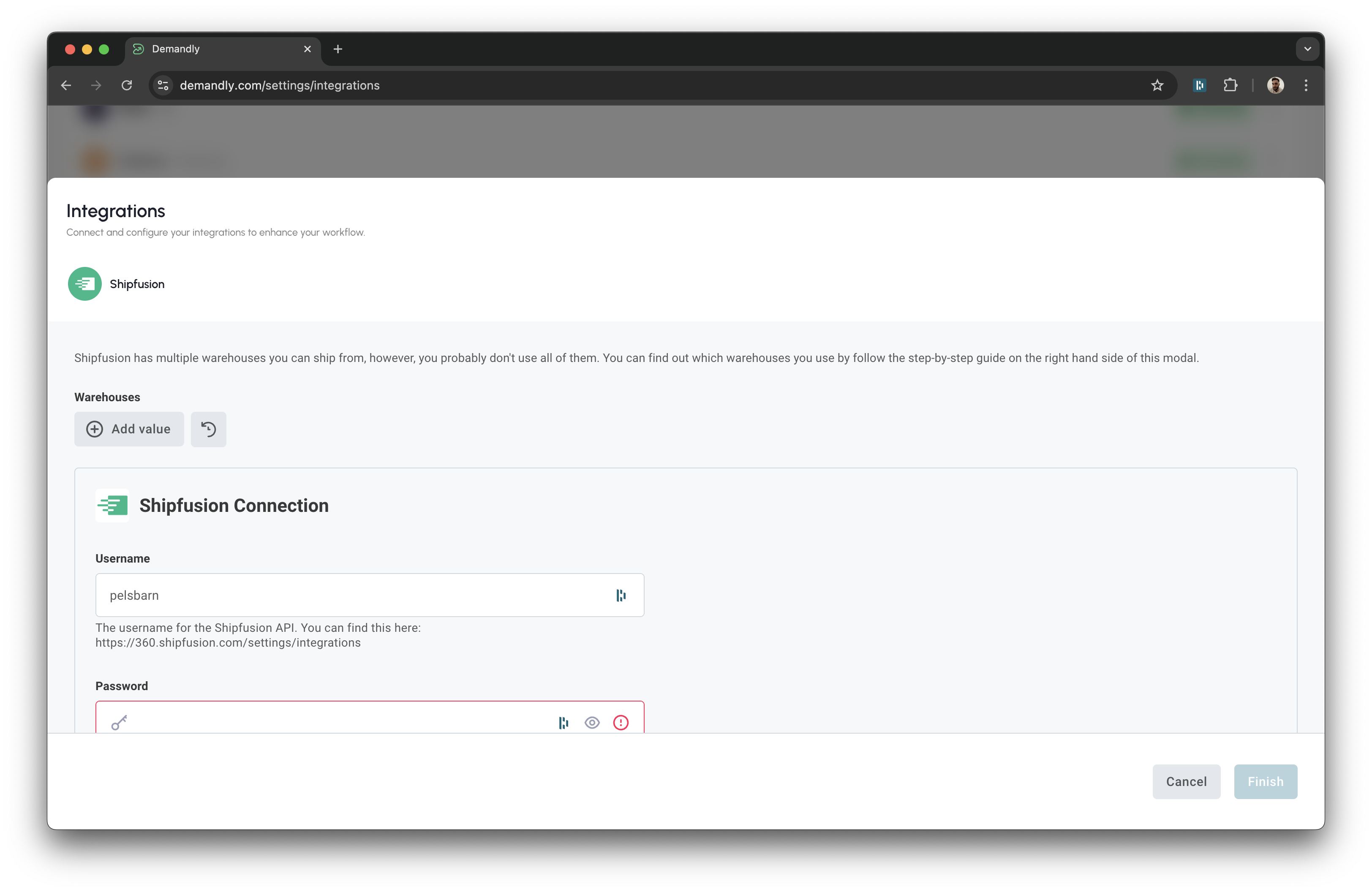
Go back to the Demandly tab.
-
Paste the username in the “Username” field.
Step 2: Get Your Password
-
Go back to the same page with the modal already open.
-
Copy the “Password” from the modal.
-
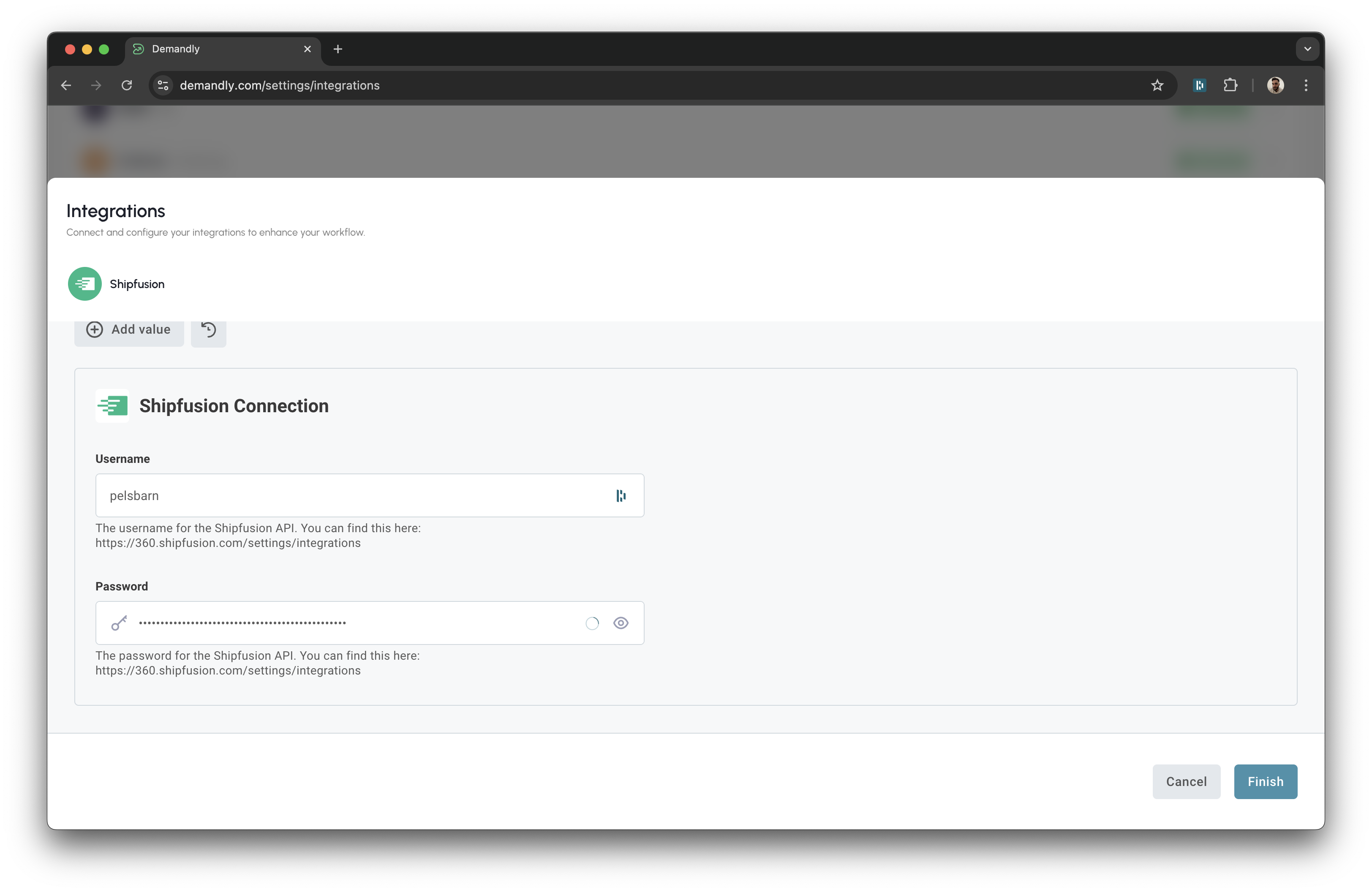
Go back to the Demandly tab.
-
Paste the password into the “Password” field.
Step 3: Configure Your Warehouses
-
Go to this page: https://360.shipfusion.com/
-
You can find the warehouses you use on the left hand side of the page in a list.
-
Now you know which warehouses you’re using, go back to the Demandly tab.
-
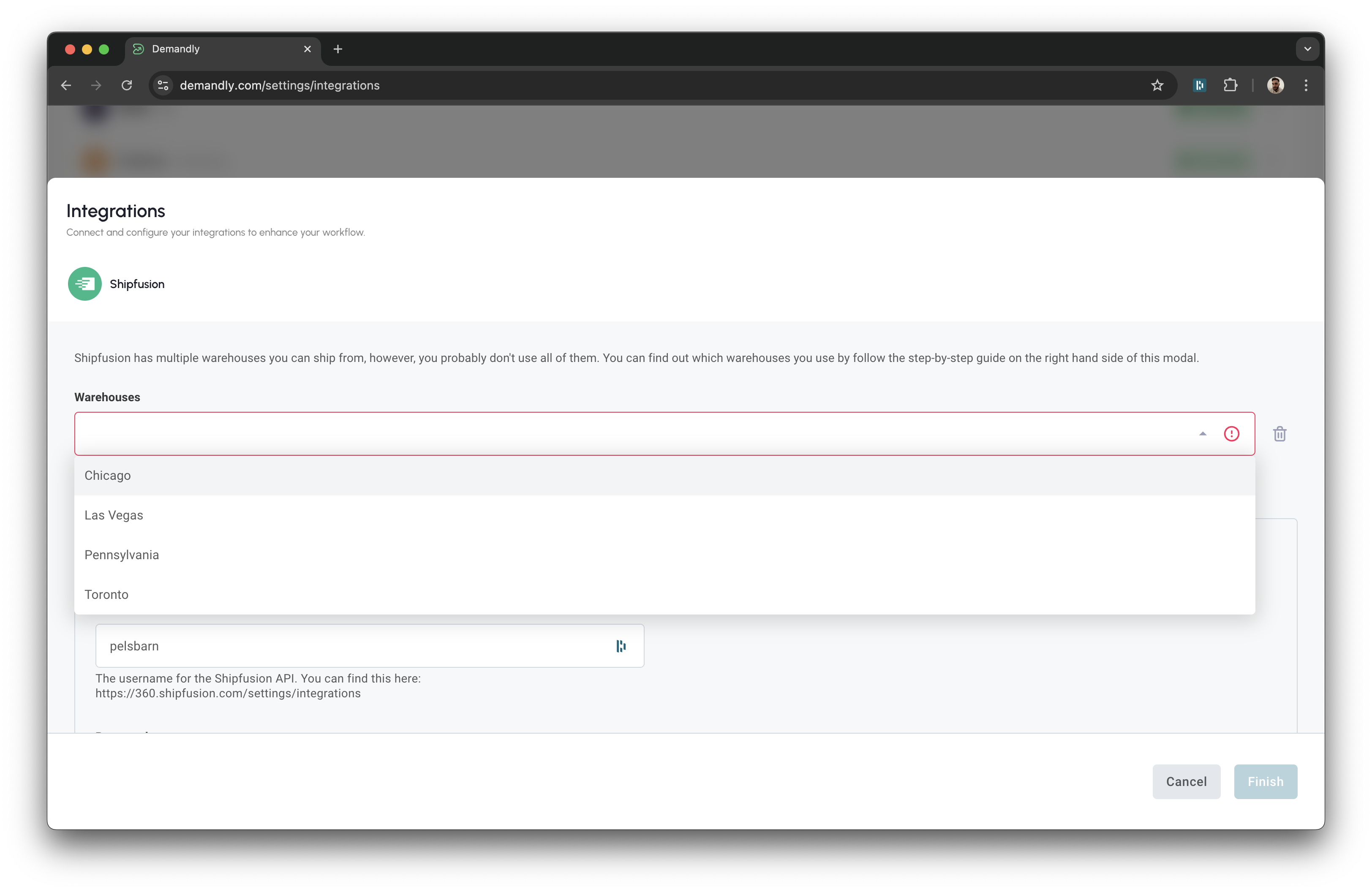
Click on “Add Value” and select a warehouse which you use.
-
You can add multiple if you need to add multiple by clicking on “Add Value” again.
Step 4: Click “Finish” in the Modal
Click the “Finish” button in the modal to complete the integration setup.
Step 5: Verify Your Integration
You’ll now see a confirmation screen showing your Shipfusion integration status as “Running”. This confirms everything is working properly. Close this window by clicking the X in the top right corner to return to your integrations page.
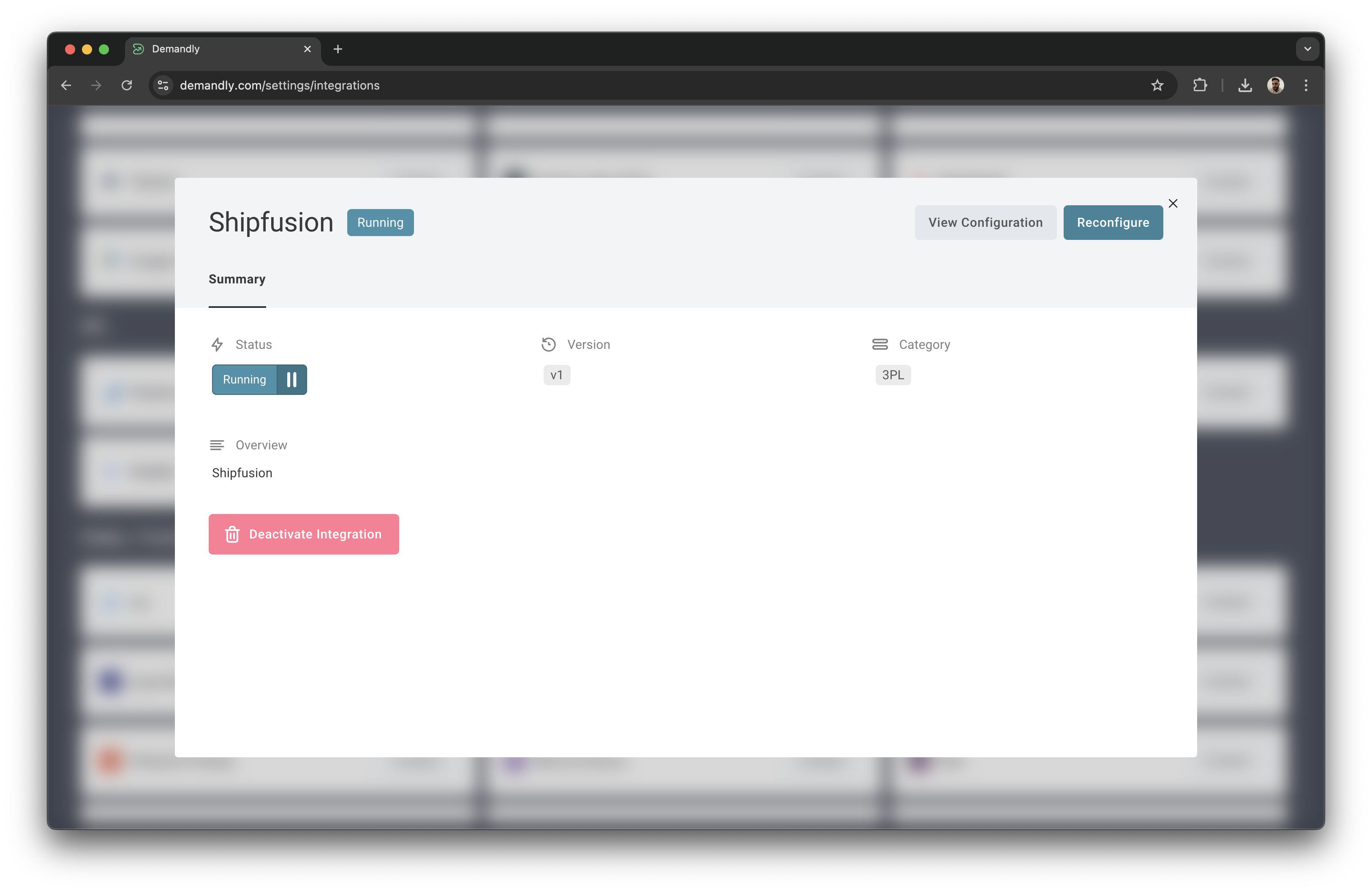
That’s it! Your Demandly account is now successfully connected to your Shipfusion account.
If you need to make changes to this integration later, you can return to the integrations page and reconfigure or deactivate it as needed.
Need Help?
If you’re experiencing issues with your integration:
- Contact our support team at support@demandly.com