Linkby
Step 1: Begin Linkby Authentication
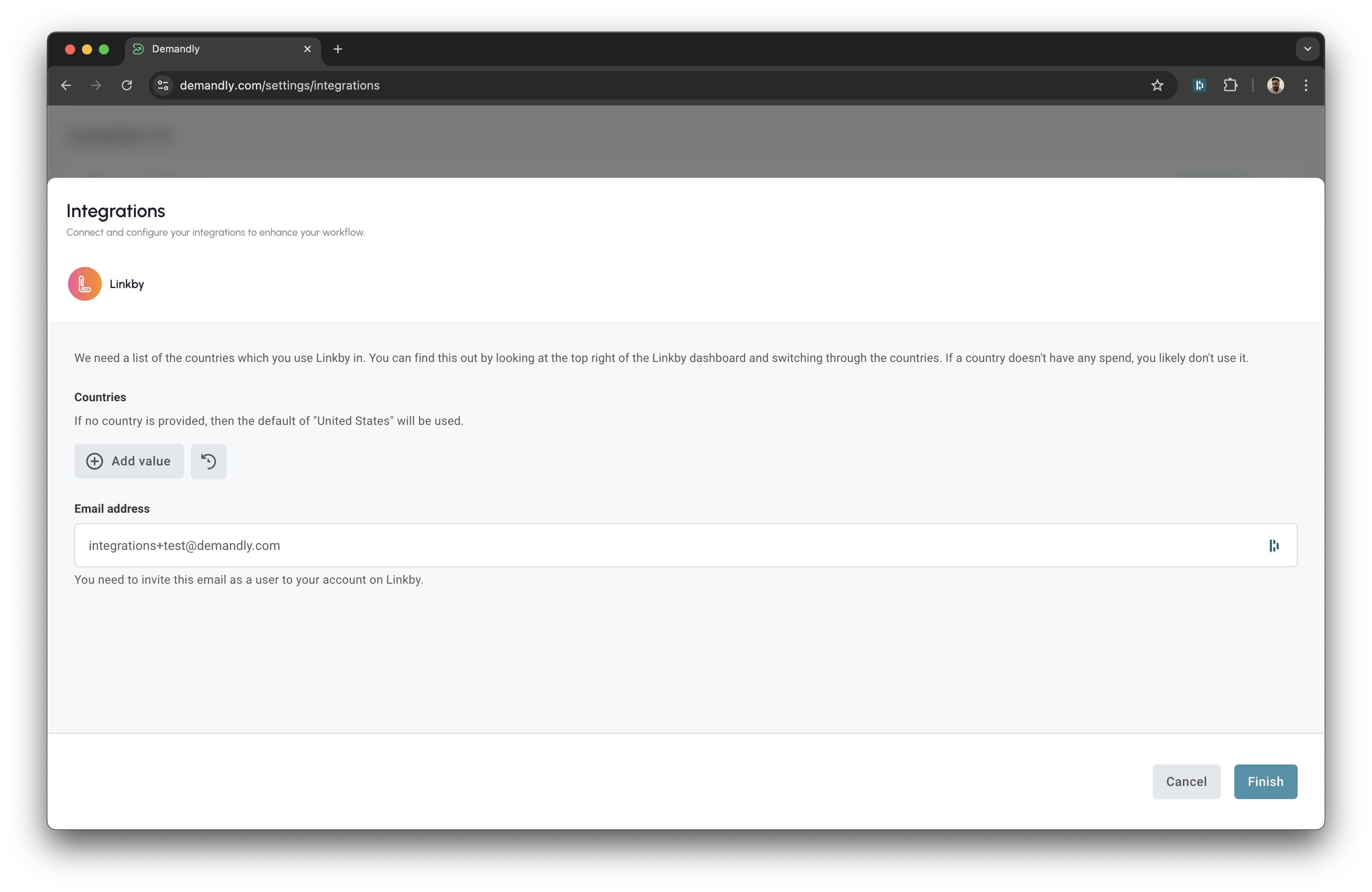
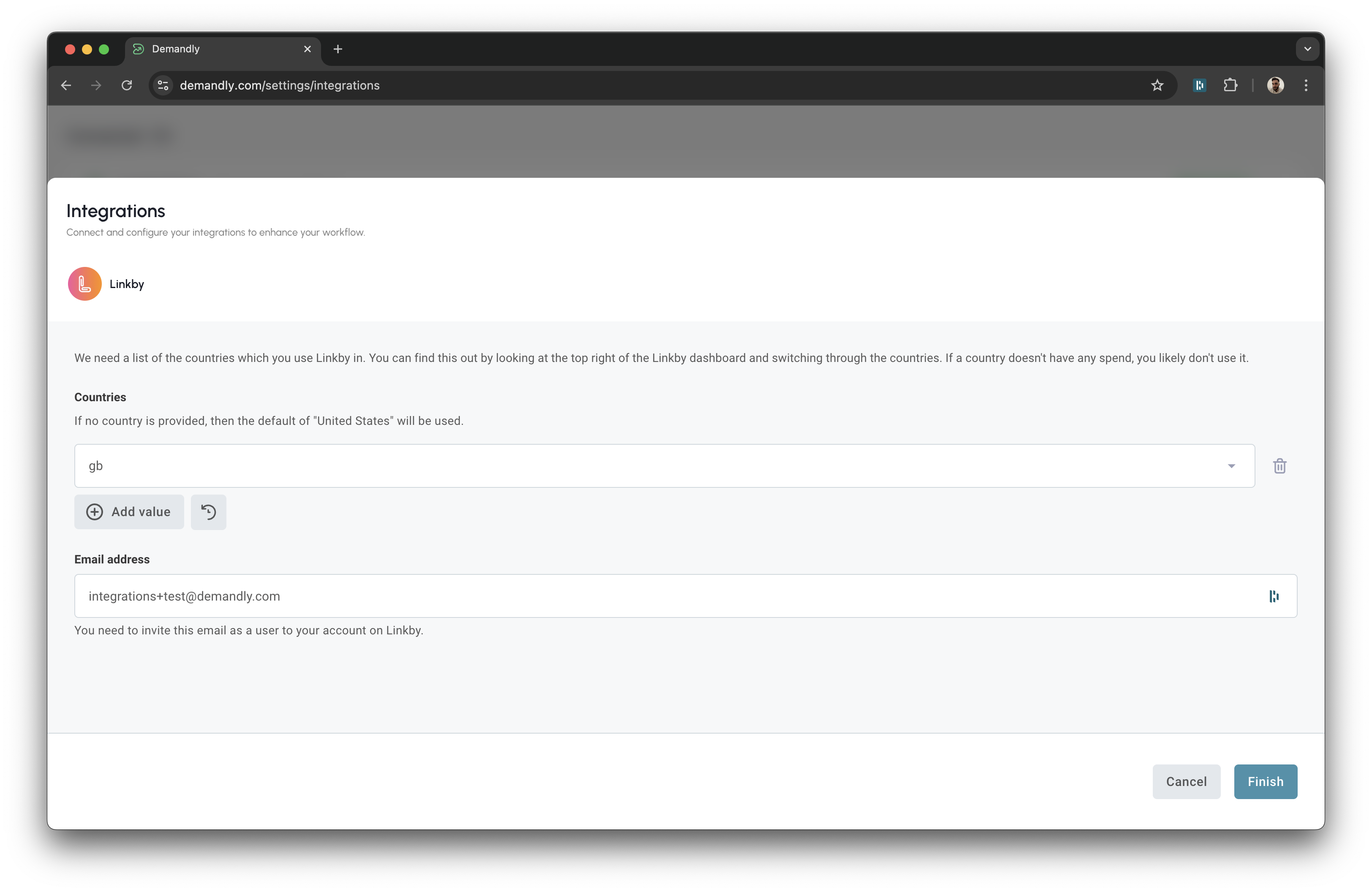
In the modal, find the Countries section and click the “Add Value” button located underneath the Countries title.
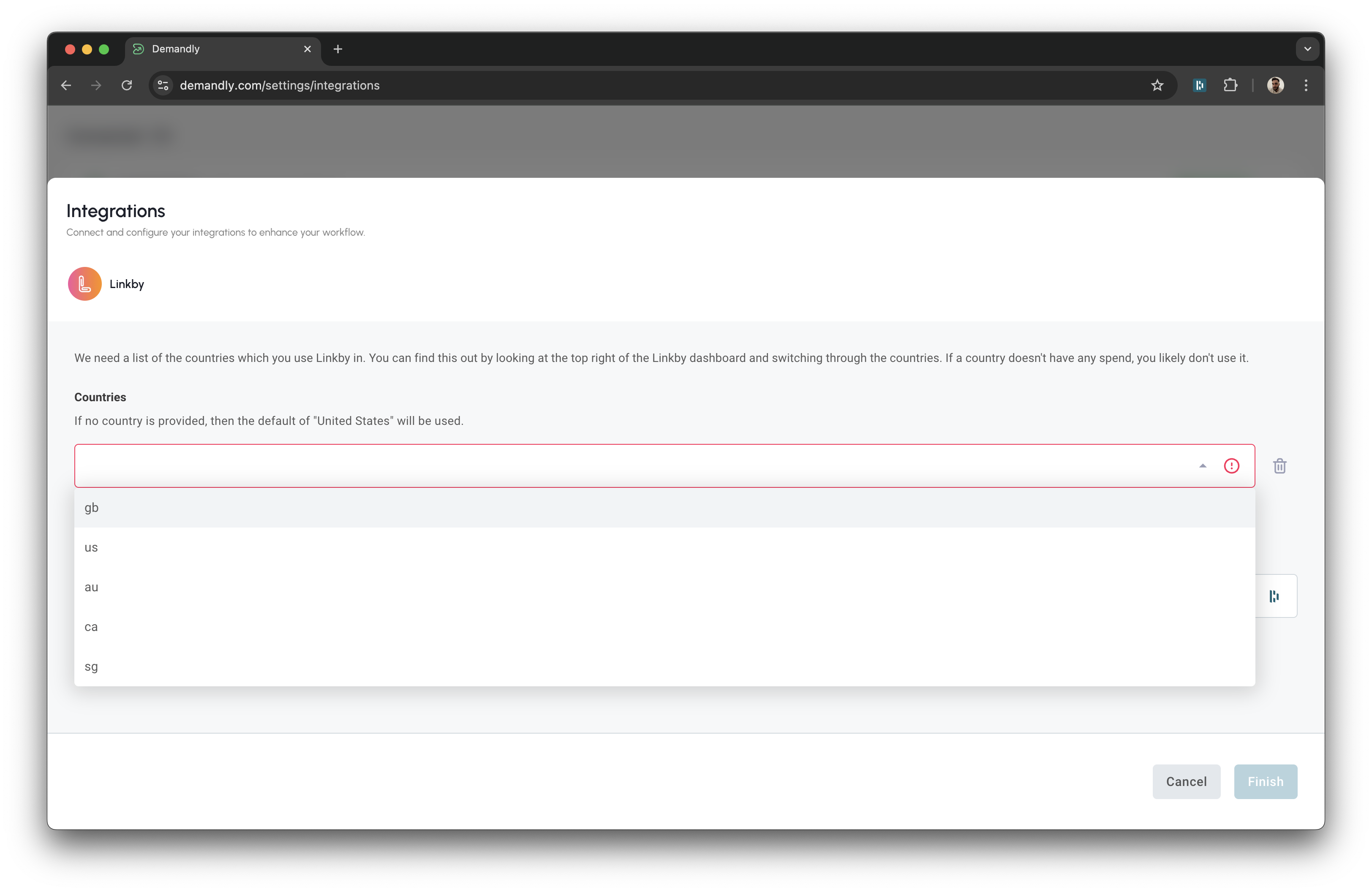
Step 2: Select All Countries Which You Use Within Linkby
Select all countries where you actively use Linkby services.
Tip: You can identify which countries you’re using by:
- • Going to Linkby
- • Switching through the countries at the top right of the site
- • If you don’t have any spend in a particular country, you likely don’t use it
Step 3: Copy the Email Address from the “Email” Input
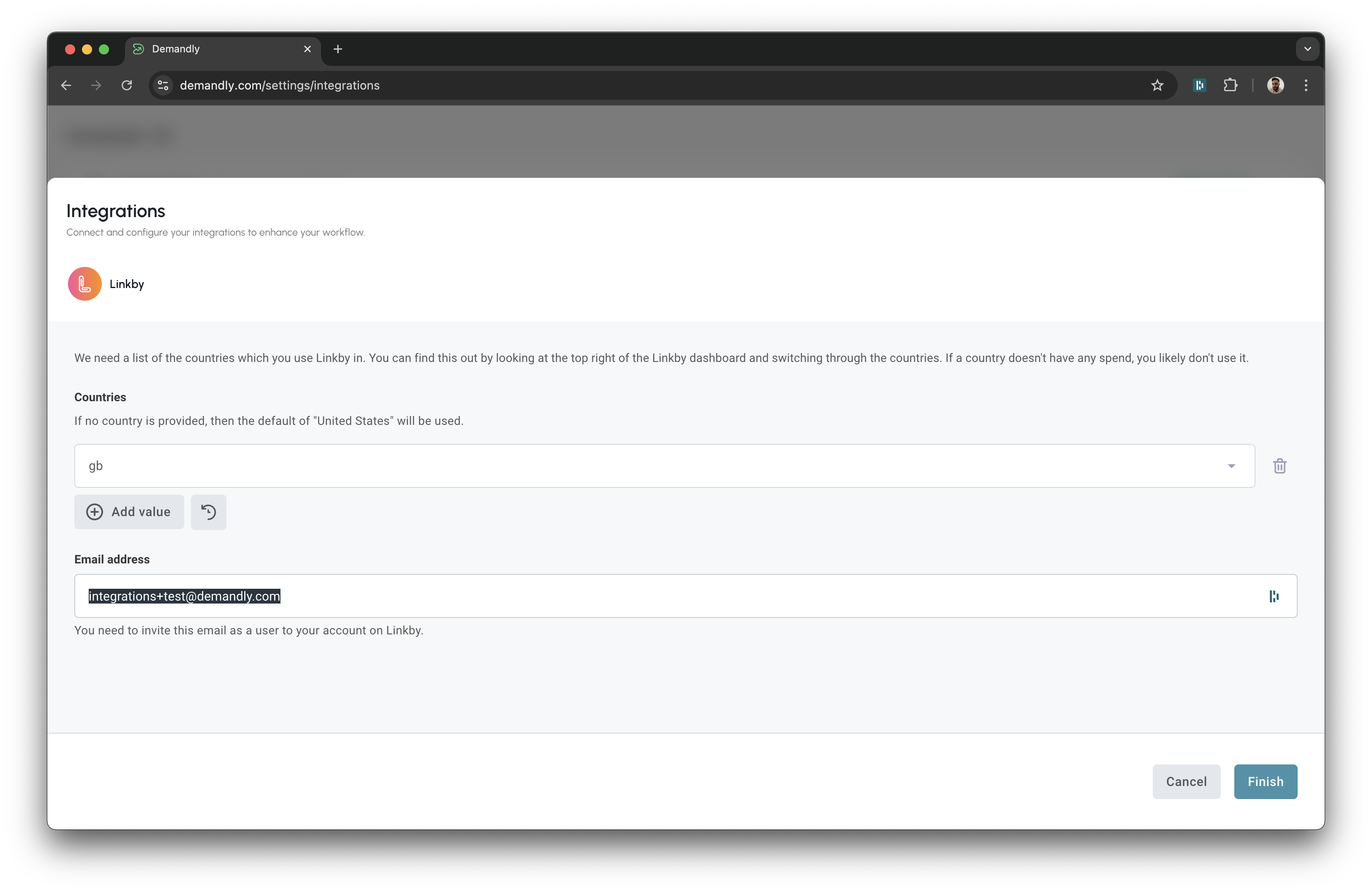
Find the email input field underneath the countries section in the modal and copy the email address that appears there.
Step 4: Go to the User Management Page on Linkby
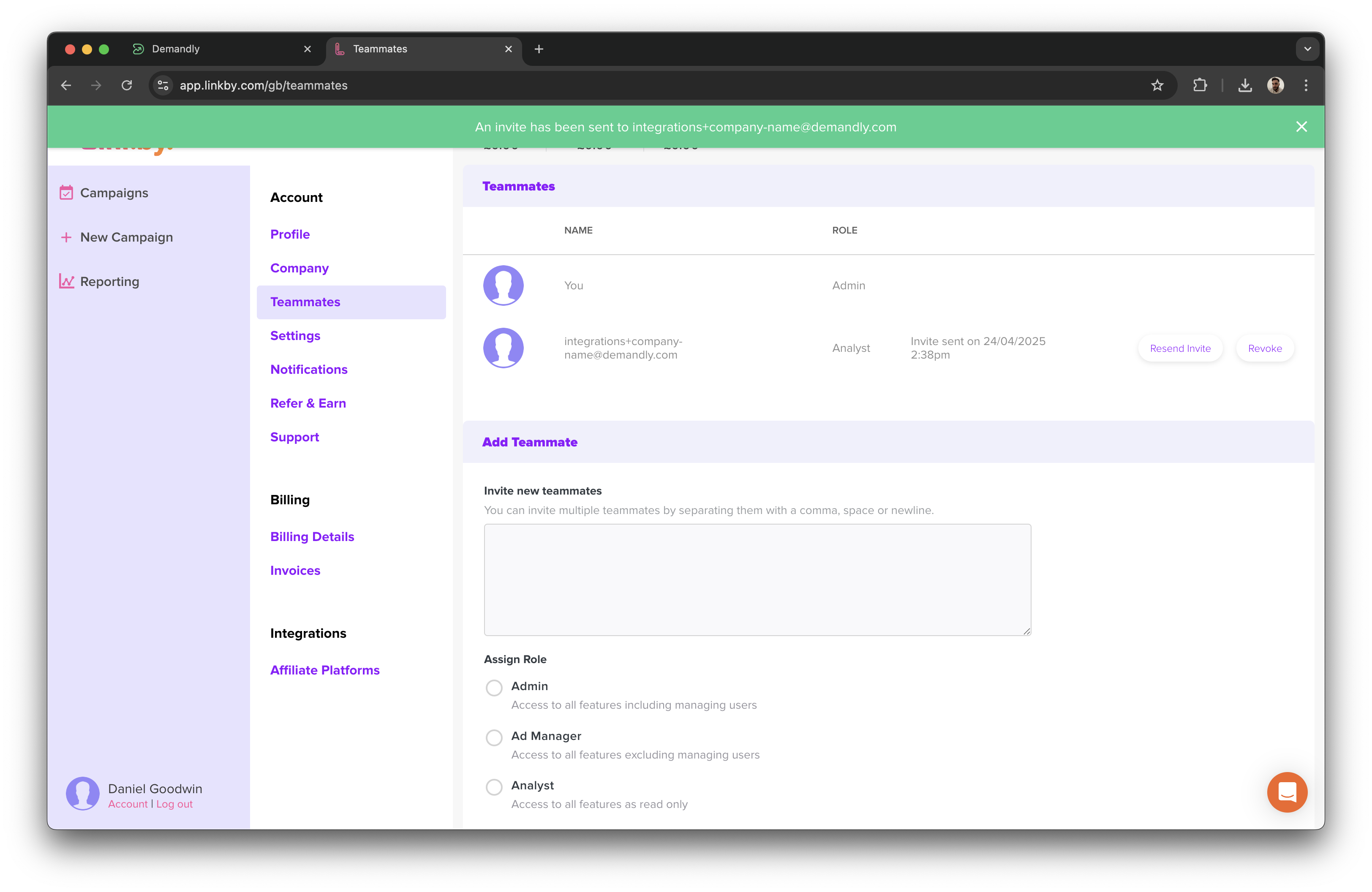
- • Navigate to the Linkby teammates page at: https://app.linkby.com/us/teammates
- • Paste the email you copied from Demandly into the “Invite New Teammates” text box
- • Assign the “Analyst” role to this user
- • Click the “Add Teammates” button
Ensure to click “Add Teammates” A green banner will indicate the teammate has been saved

Step 5: Go back to the Demandly Tab and finalise connection
Return to your Demandly browser tab or window and click “Finish” in the modal
Step 6: Verify Your Integration
You’ll now see a confirmation screen showing your Linkby integration status as “Running”. This confirms everything is working properly. Close this window by clicking the X in the top right corner to return to your integrations page.
That’s it! Your Demandly account is now successfully connected to your Linkby account.
If you need to make changes to this integration later, you can return to the integrations page and reconfigure or deactivate it as needed.
Need Help?
If you’re experiencing issues with your integration:
- Contact our support team at support@demandly.com