Juo
Step 1: Access Your Shopify Admin
Open a new browser tab and log into your Shopify admin dashboard:
-
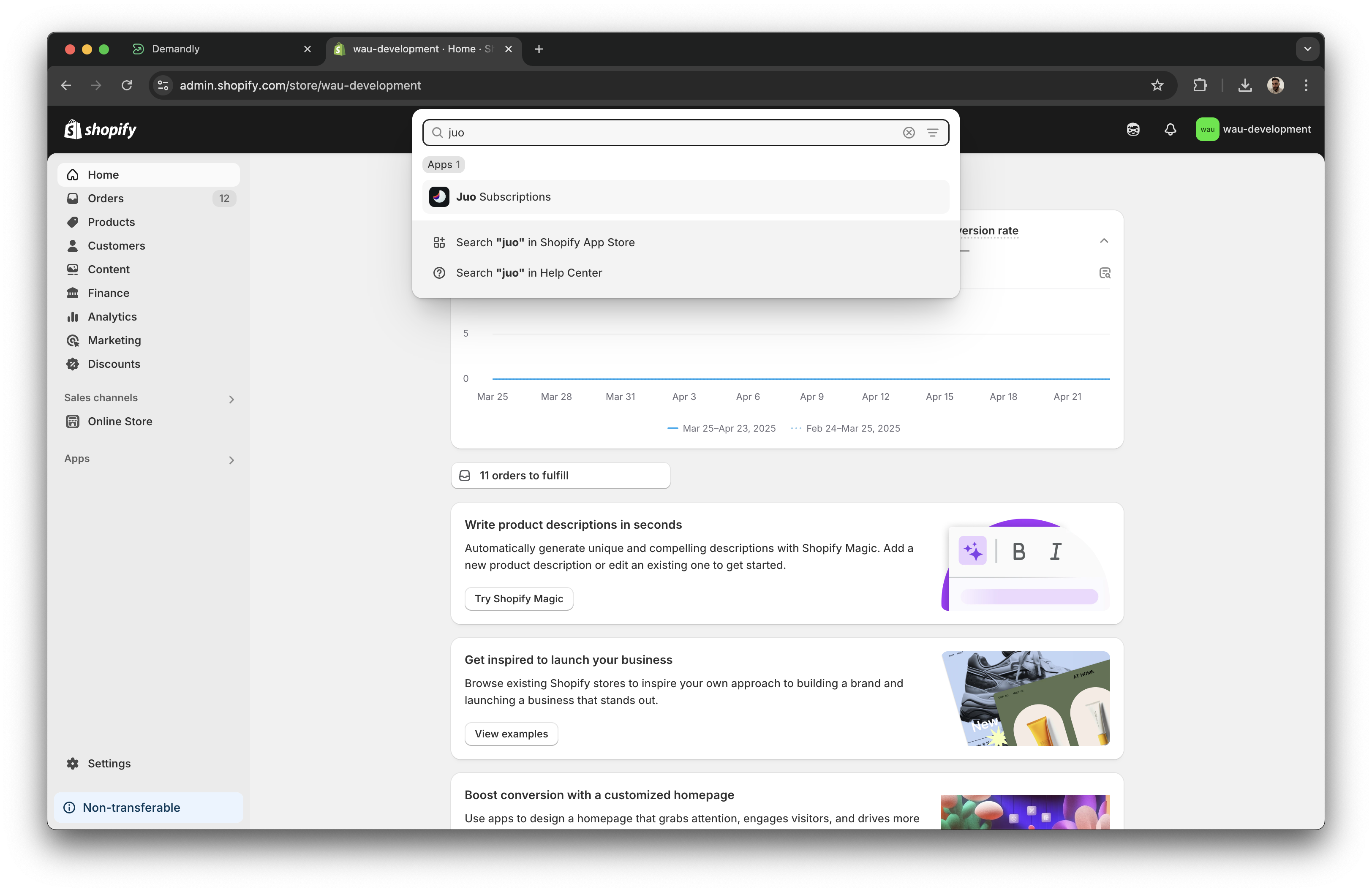
In the Shopify search bar at the top, type “juo”
-
Click on the “Juo Subscriptions” app that appears in the search results
Step 2: Navigate to Juo Settings
In the Juo Subscriptions app:
-
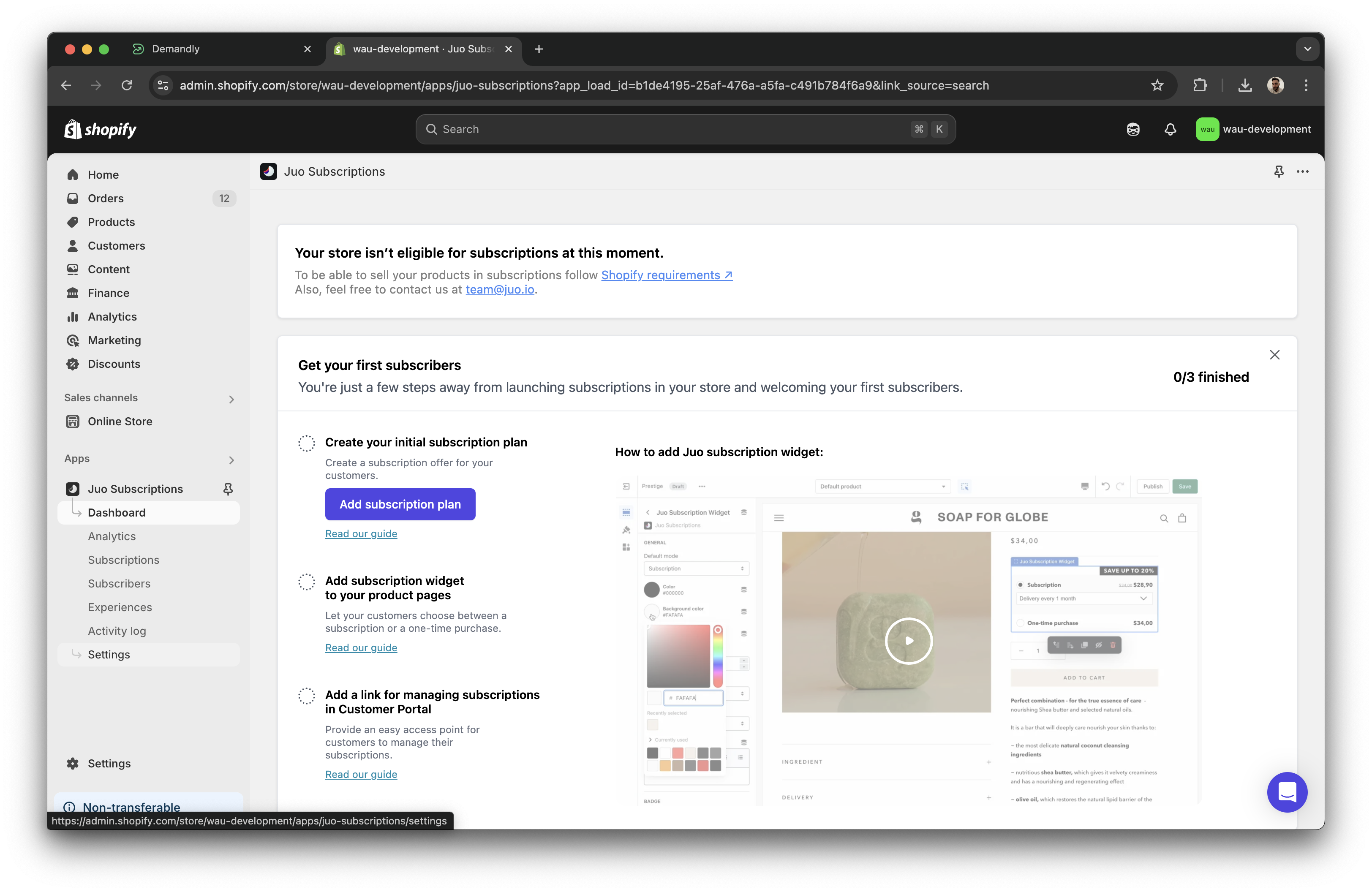
Click on “Settings” in the left sidebar menu (near the bottom of the menu)
-
Click on the “Integrations” tab in the top navigation menu
-
Click on “API keys” in the integrations page
Step 3: Generate a New API Key
-
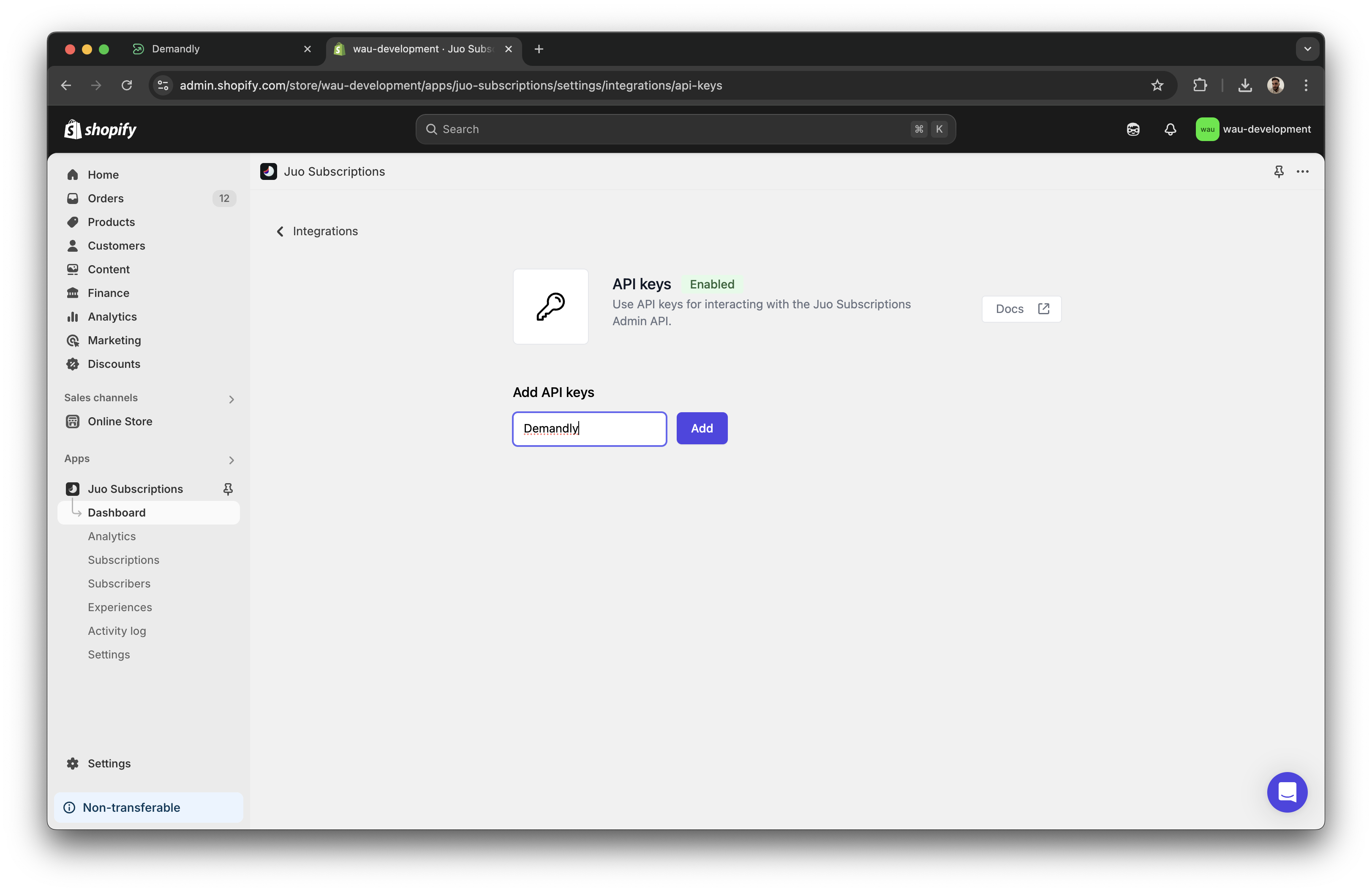
In the Add API keys section, type “Demandly” in the input field
-
Click the purple “Add” button
-
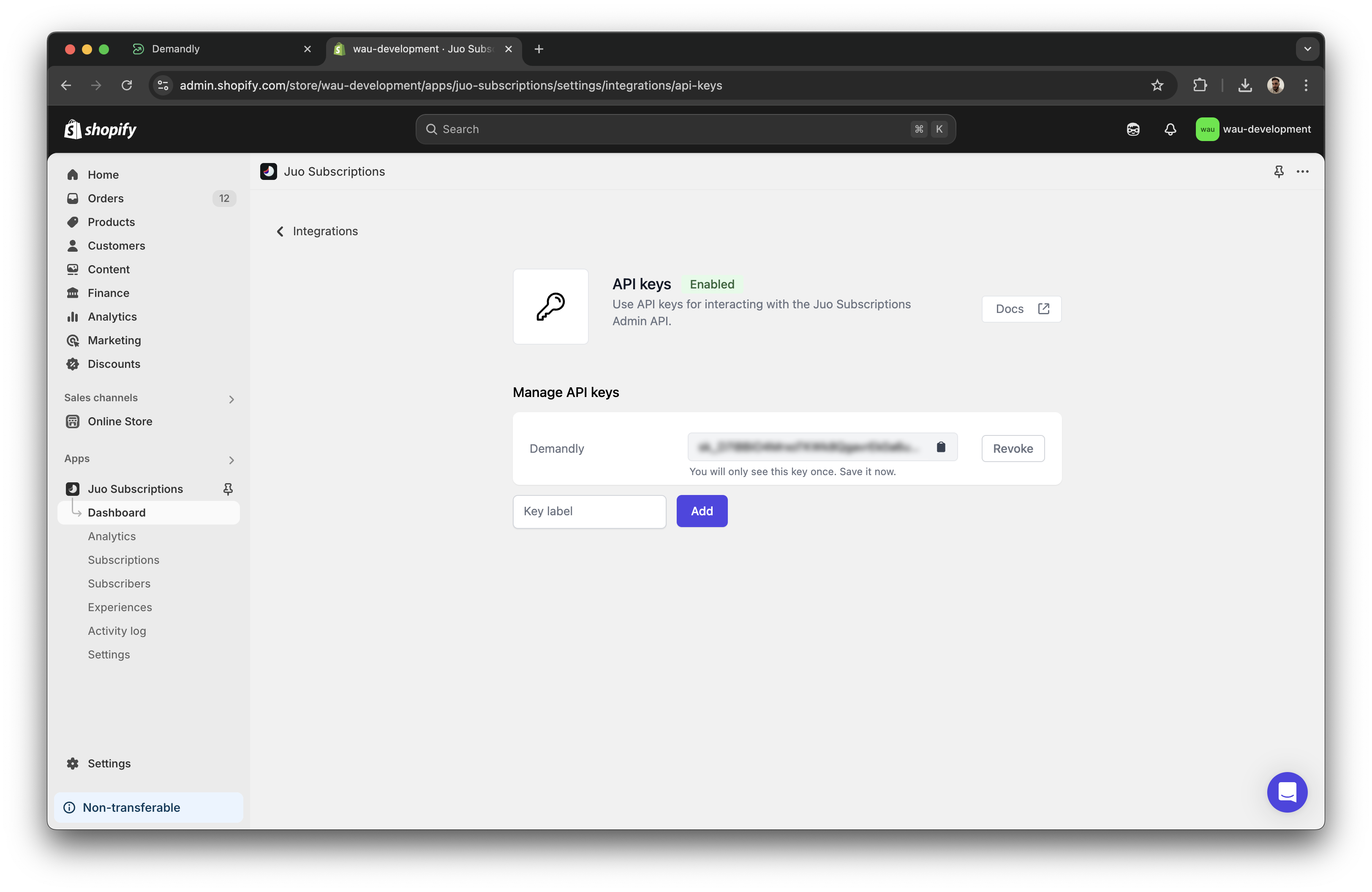
You’ll see a new API key generated - it will be displayed only once, so make sure to copy it immediately
-
Note the warning message: “You will only see this key once. Save it now.”
Step 4: Complete the Integration in Demandly
-
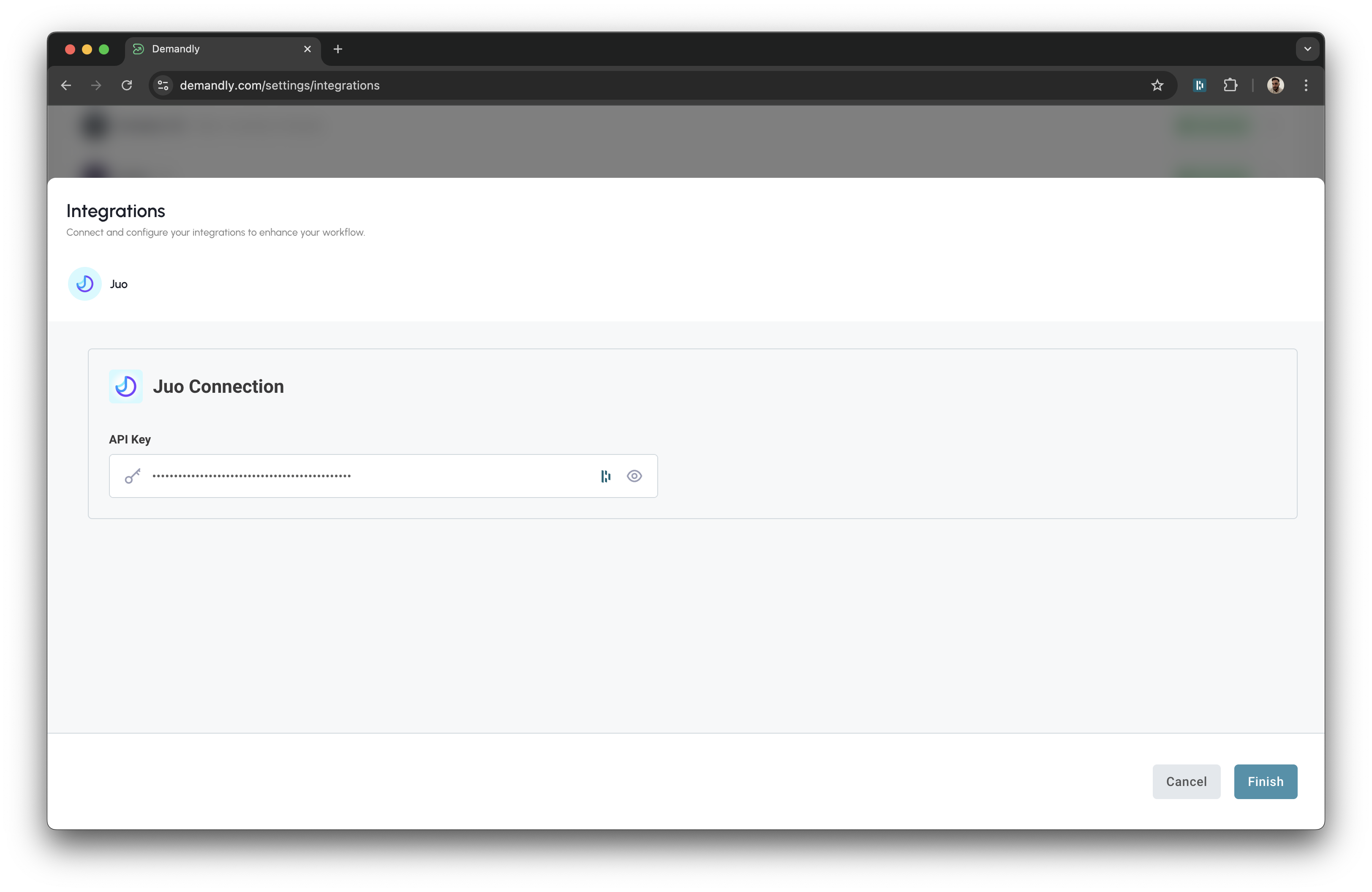
Return to the Demandly tab where you were setting up the Juo integration
-
In the “API Key” field, paste the key you just copied from Juo
-
Click the blue “Finish” button in the bottom right corner
Step 5: Verify Your Integration
You’ll now see a confirmation screen showing your Juo integration status as “Running”. This confirms everything is working properly. Close this window by clicking the X in the top right corner to return to your integrations page.
That’s it! Your Demandly account is now successfully connected to your Juo account.
If you need to make changes to this integration later, you can return to the integrations page and reconfigure or deactivate it as needed.
Need Help?
If you’re experiencing issues with your integration:
- Contact our support team at support@demandly.com