Hutch
Step 1: Create a New User in Hutch
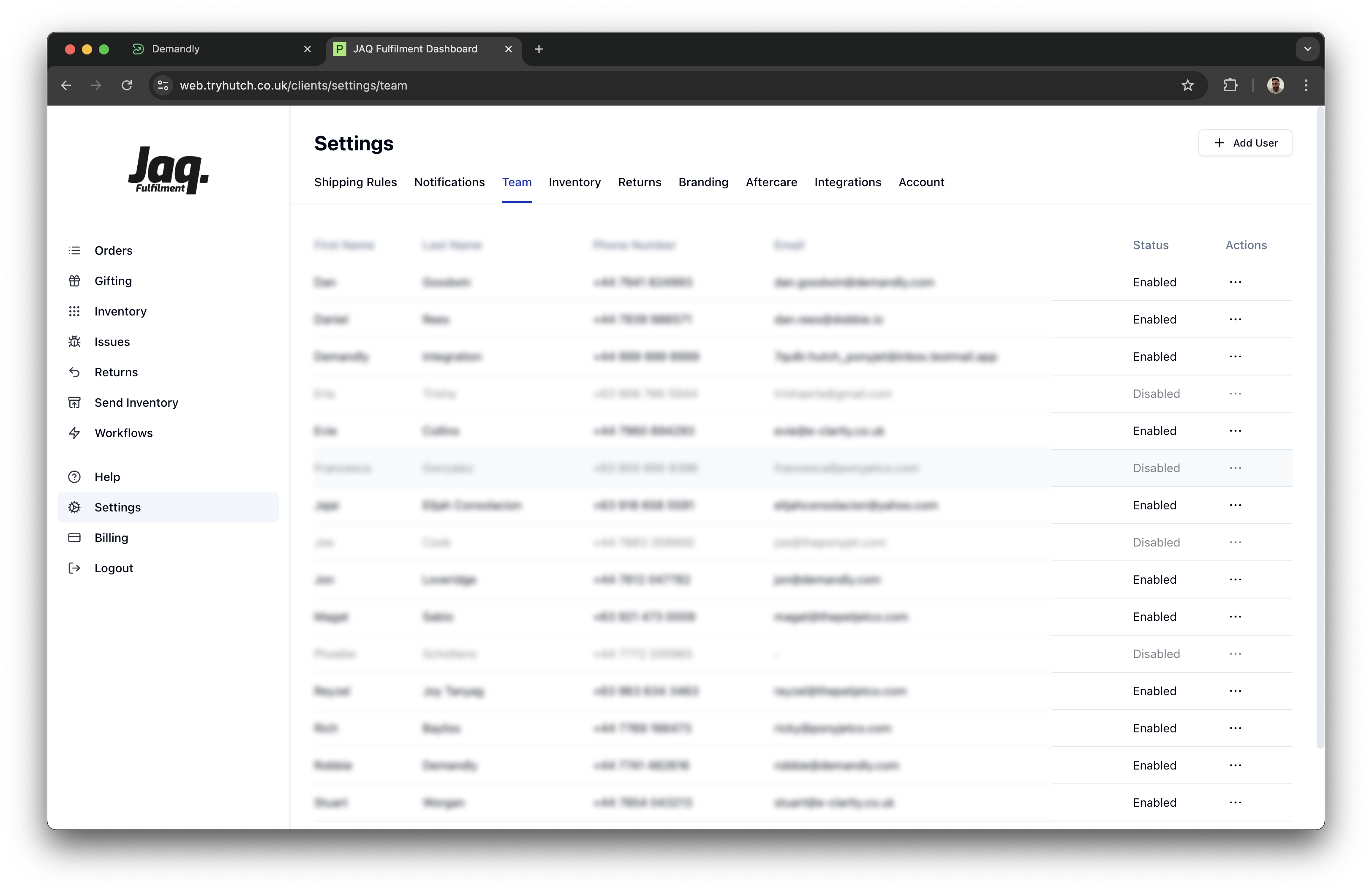
Click the “Add User” button in the top right corner of the Team page
Fill in the new user details:
• First name: Demandly
• Last name: Integration
• Phone number: Enter any valid phone number format (e.g., 07777 777777) - this is not critical
• Email: Paste the exact email address from the previous step (the one provided in the Demandly modal)
Click the “Create user” button to add this new team member
Step 2: Complete the Integration in Demandly
-
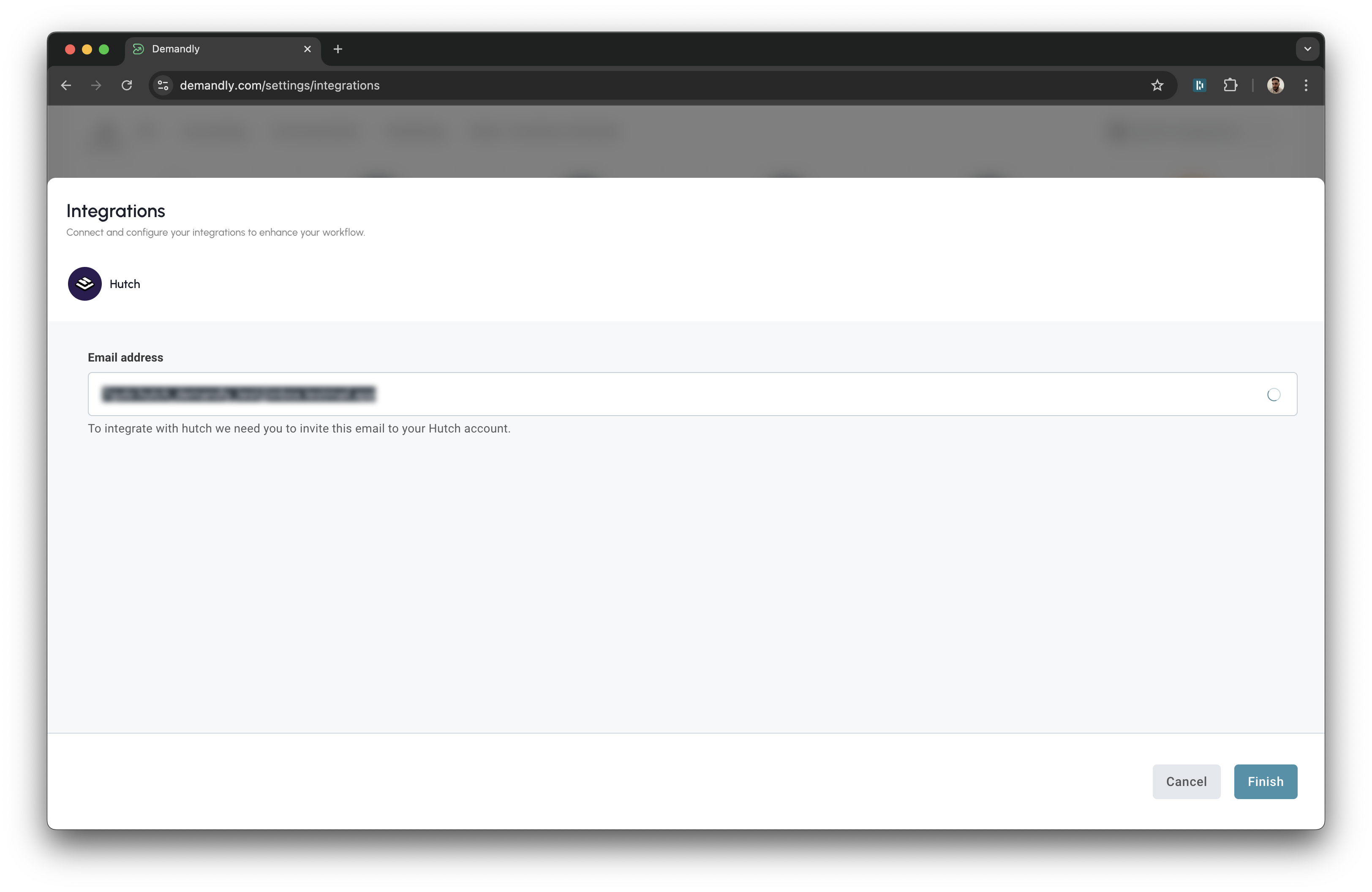
Return to the Demandly tab where you were setting up the Hutch integration
-
Confirm that the email address is correctly entered
-
Click the blue “Finish” button in the bottom right corner
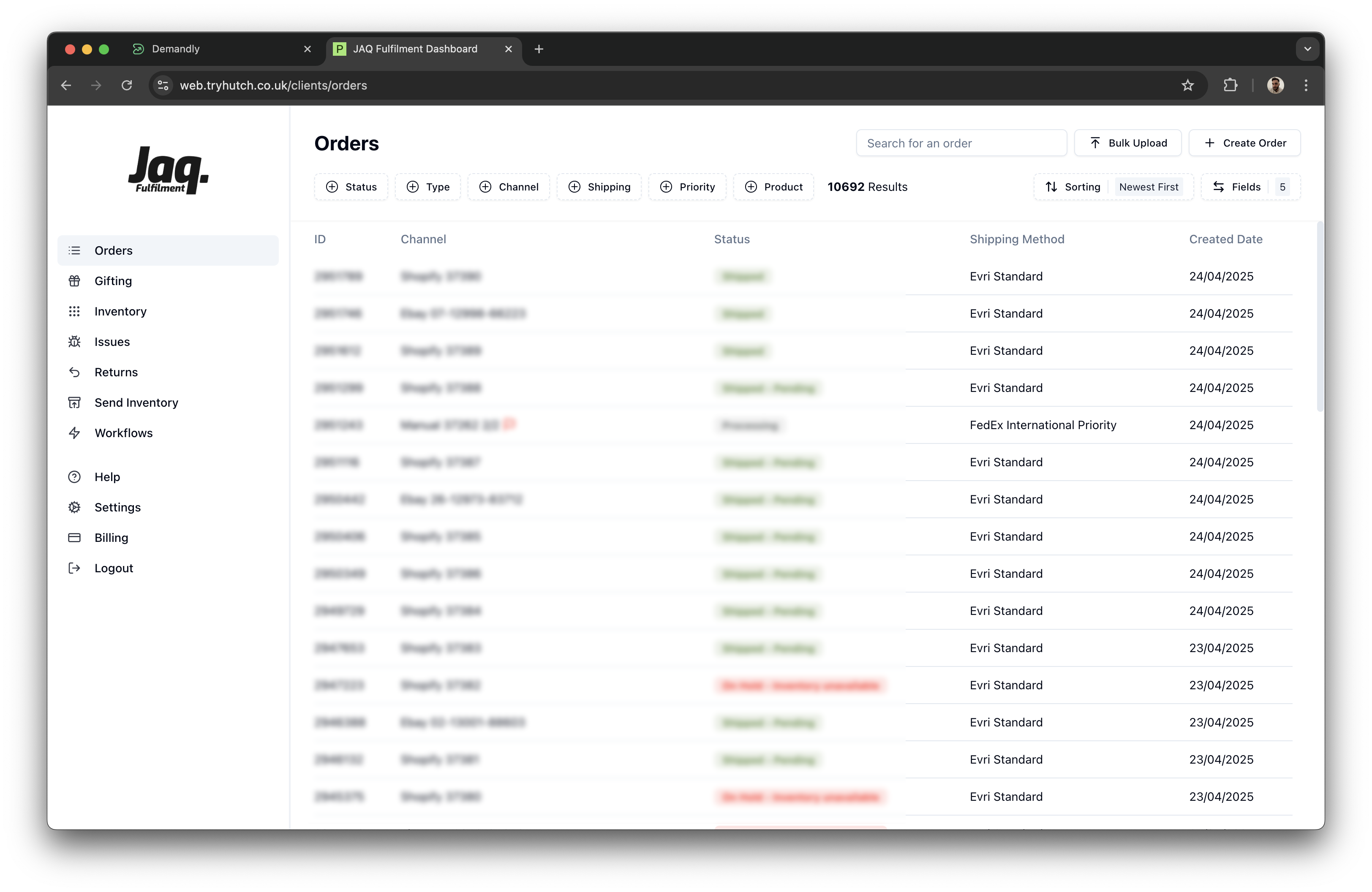
Step 3: Verify Your Integration
You’ll now see a confirmation screen showing your Hutch integration status as “Running”. This confirms everything is working properly. Close this window by clicking the X in the top right corner to return to your integrations page.
That’s it! Your Demandly account is now successfully connected to your Hutch account.
If you need to make changes to this integration later, you can return to the integrations page and reconfigure or deactivate it as needed.
Need Help?
If you’re experiencing issues with your integration:
- Contact our support team at support@demandly.com