Google Sheets
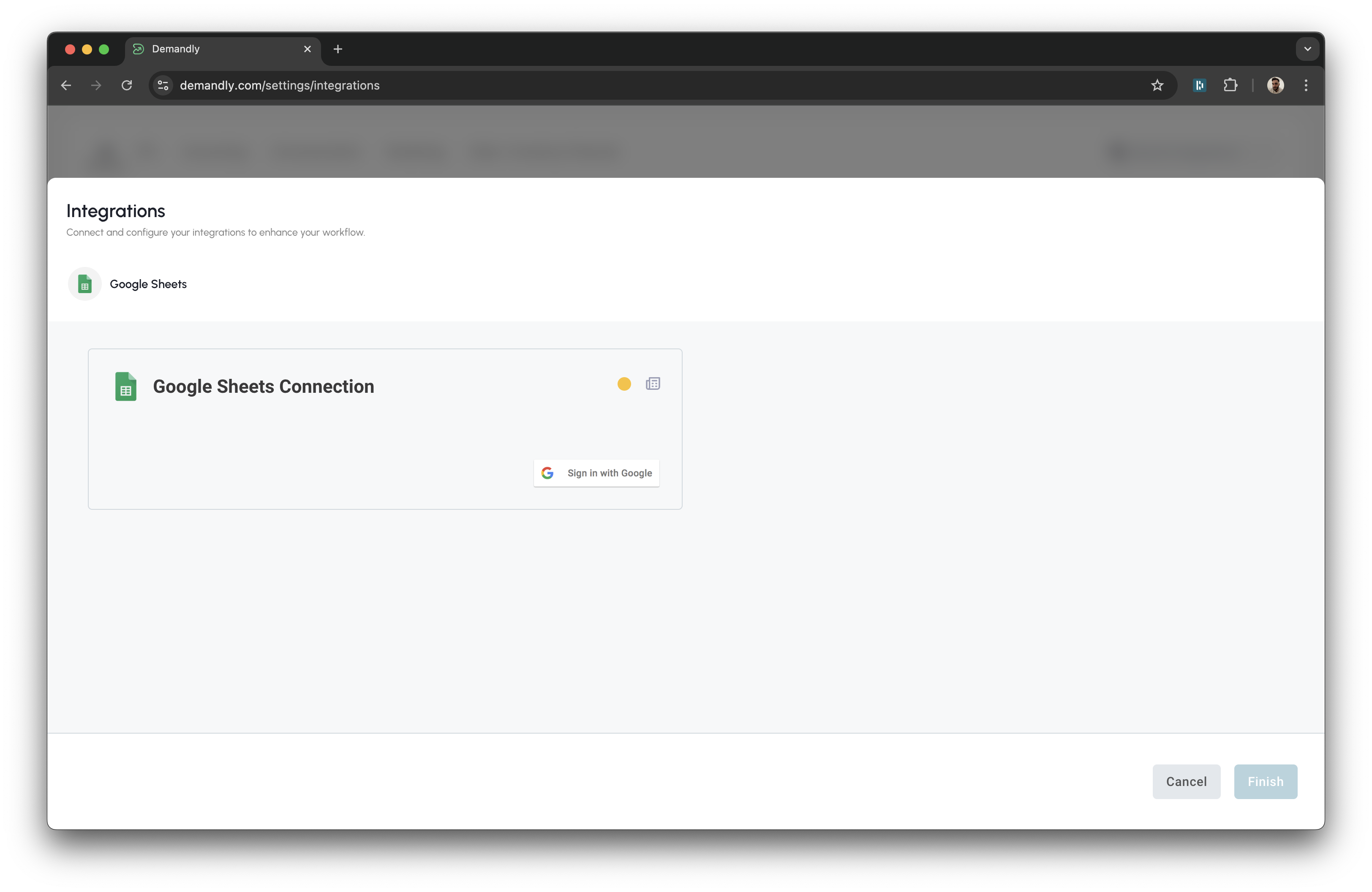
Step 1: Begin Google Authentication
On the Google Sheets Connection screen, you’ll see a button labeled “Sign in with Google”. Click this button to start the authentication process with your Google account.
Step 2: Select Your Google Account
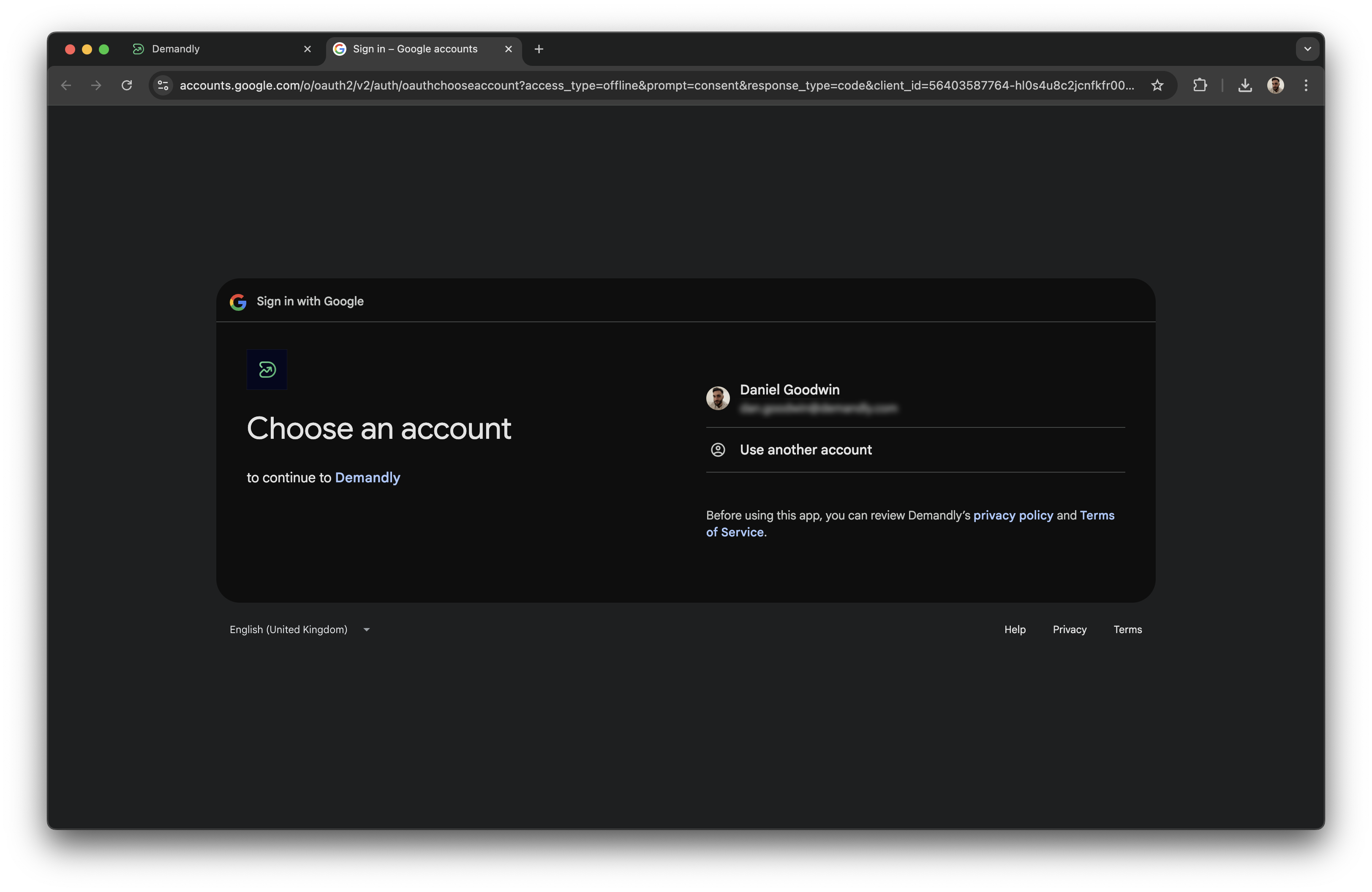
A new window will open showing Google’s account selection screen:
-
If your account appears in the list, click on it
-
If you don’t see the account you want to use, click “Use another account” and enter your credentials
Step 3: Approve Access Permissions
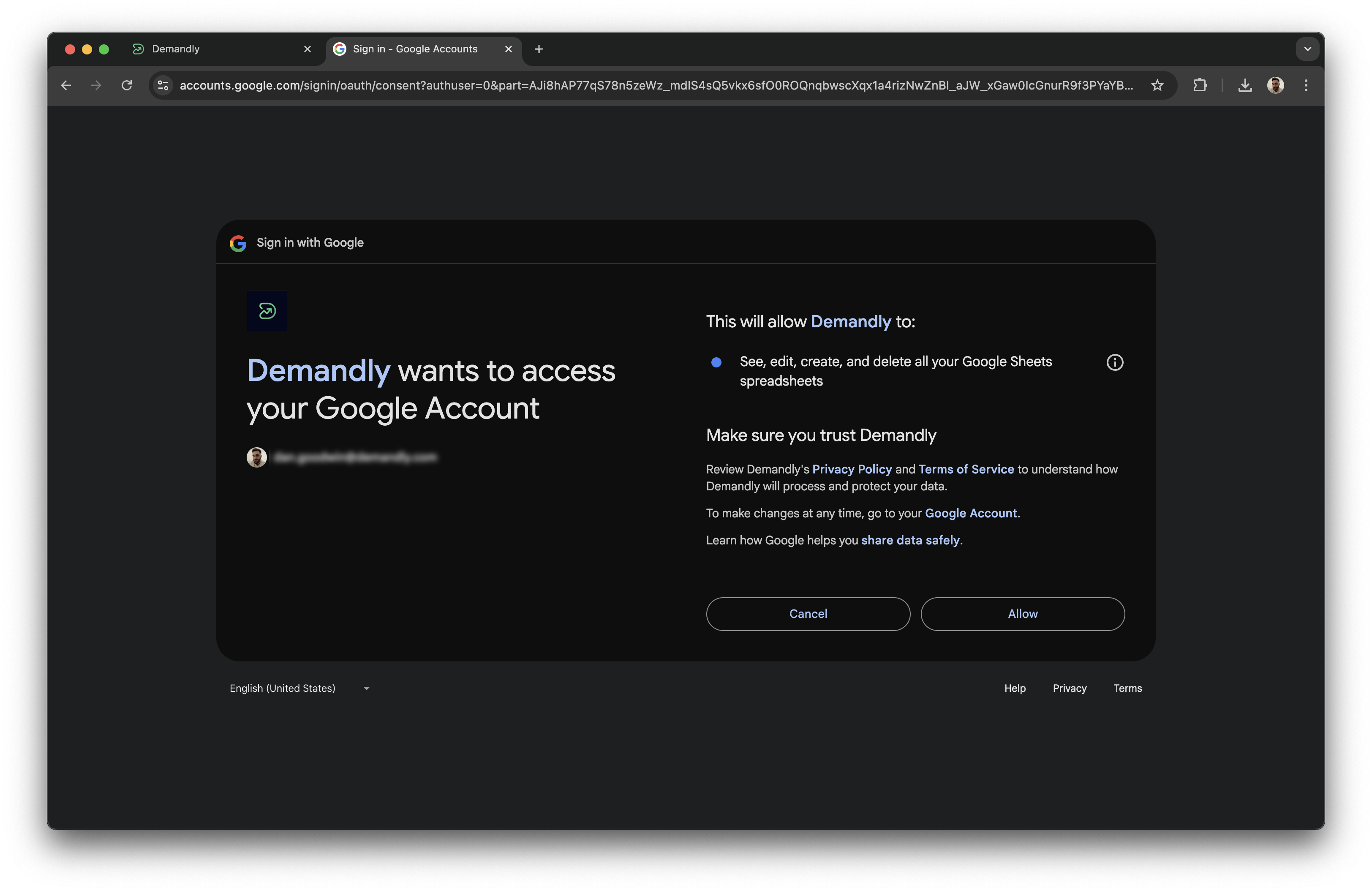
After selecting your account, Google will ask for your permission to allow Demandly to access your Google Sheets. You’ll see that Demandly is requesting permission to:
- See, edit, create, and delete all your Google Sheets spreadsheets
Review these permissions and click the “Allow” button in the bottom right corner.
Step 4: Complete Authorization
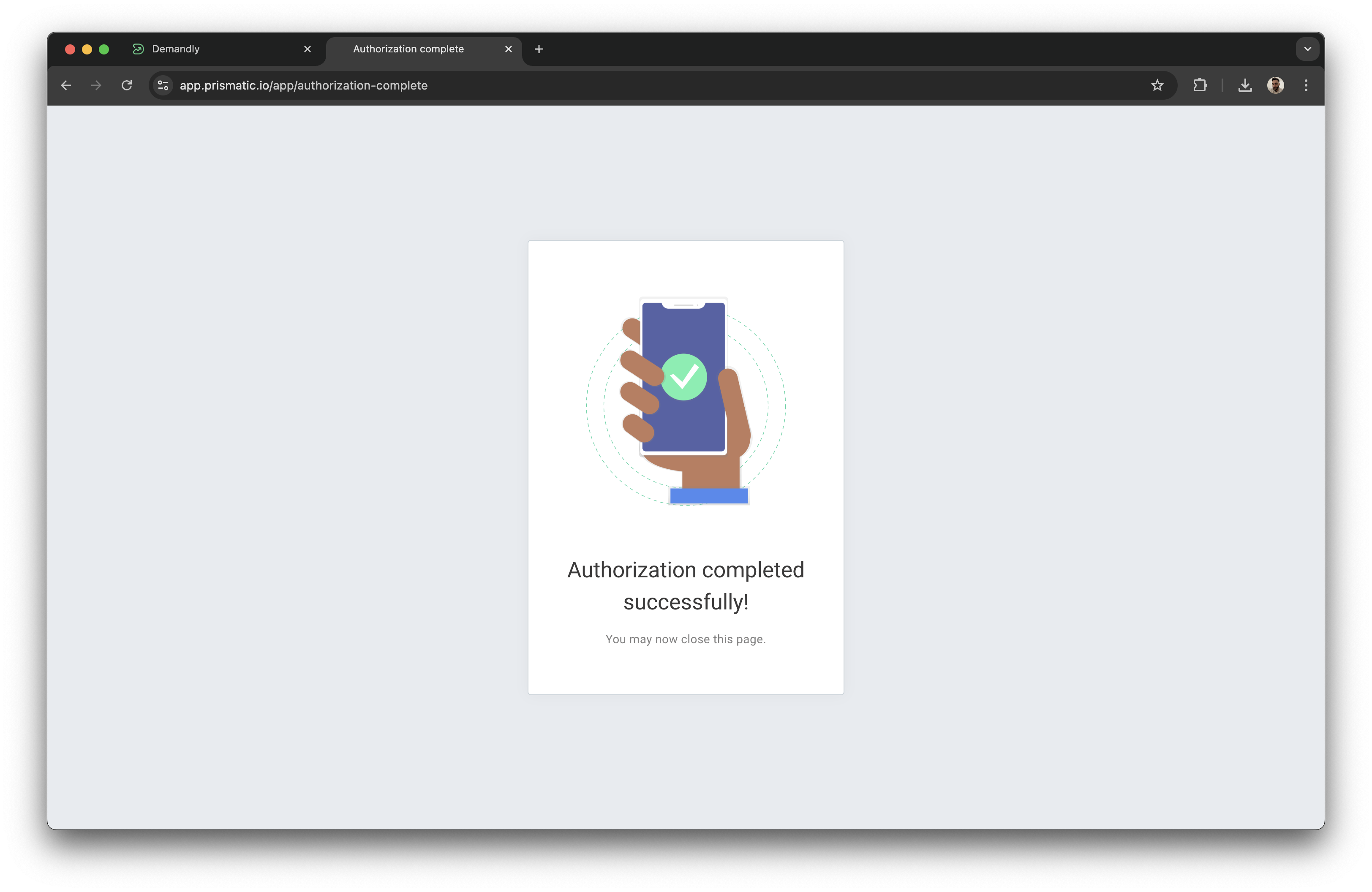
Once you’ve approved access, you’ll see an “Authorization completed successfully” message with a checkmark icon. You can close this browser tab and return to Demandly.
Step 5: Verify Your Integration
You’ll now see a confirmation screen showing your Google Sheets integration status as “Running”. This confirms everything is working properly. Close this window by clicking the X in the top right corner to return to your integrations page.
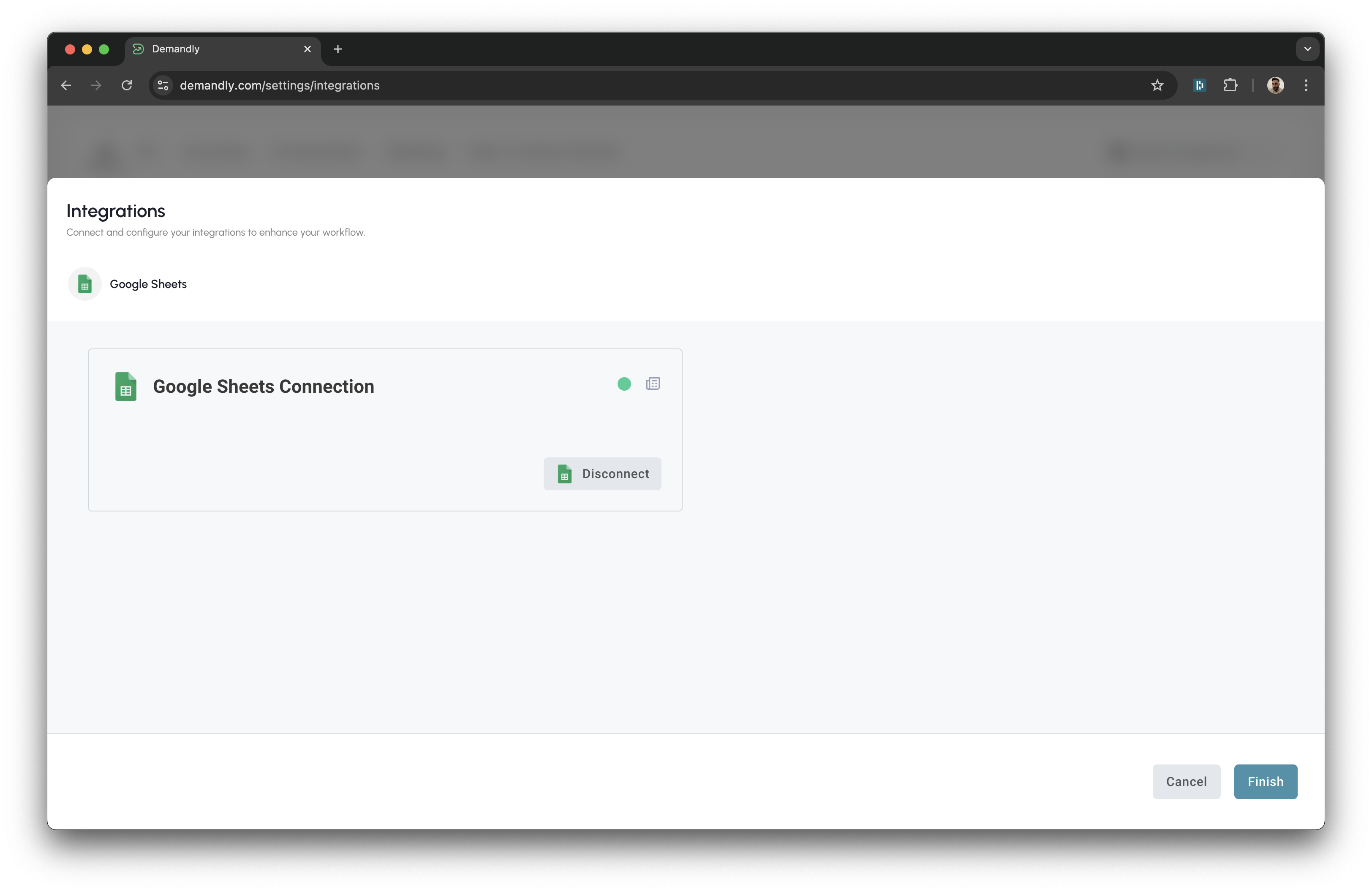
That’s it! Your Demandly account is now successfully connected to your Google Sheets account.
If you need to make changes to this integration later, you can return to the integrations page and reconfigure or deactivate it as needed.
Need Help?
If you’re experiencing issues with your integration:
- Contact our support team at support@demandly.com