Checkout Champ
Step 1: Log in to Checkout Champ
-
Go to this page: https://crm.checkoutchamp.com/
-
Login with your details.
-
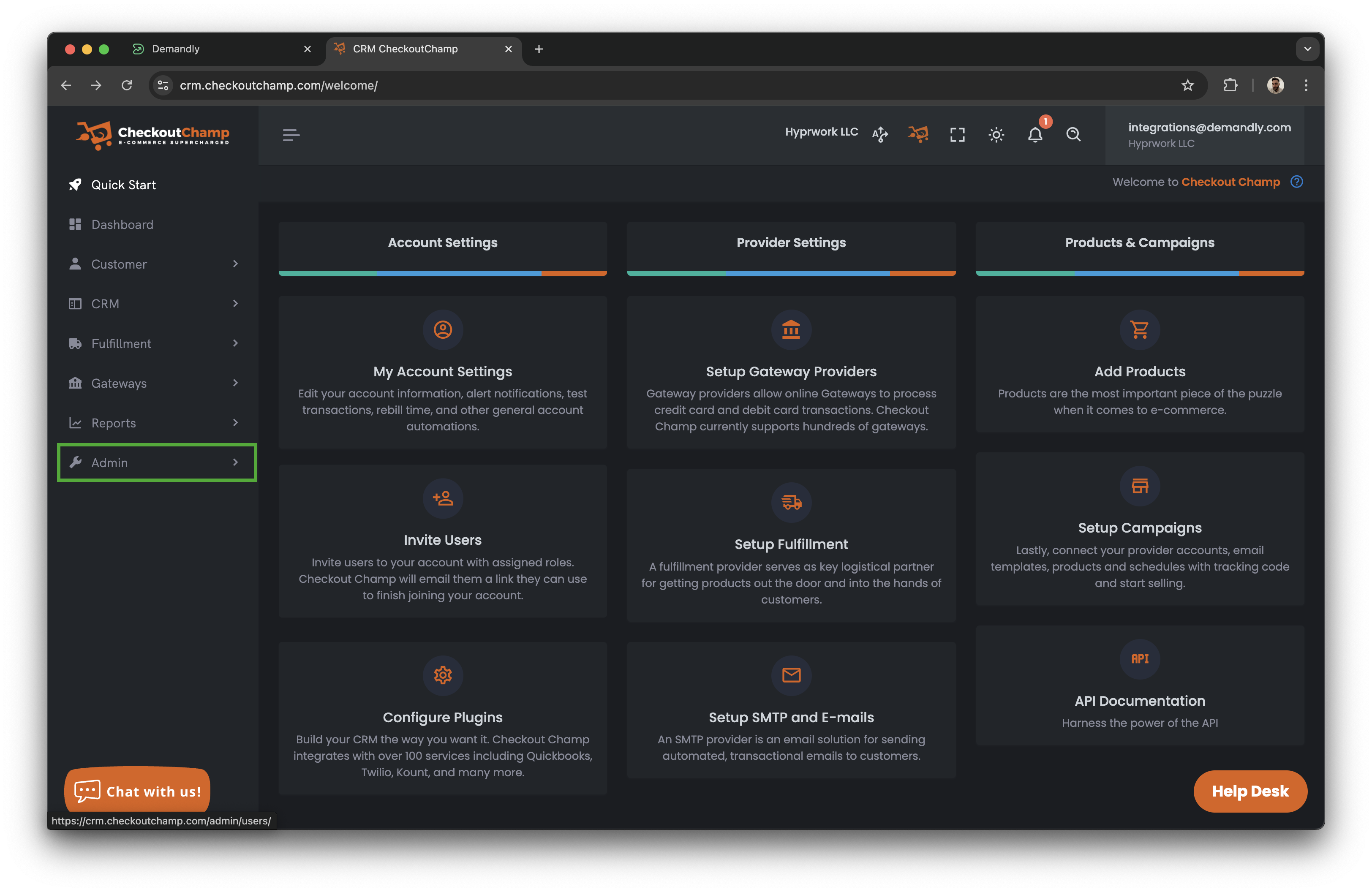
Click on “admin” in the menu on the left.
Step 2: Create an API user
-
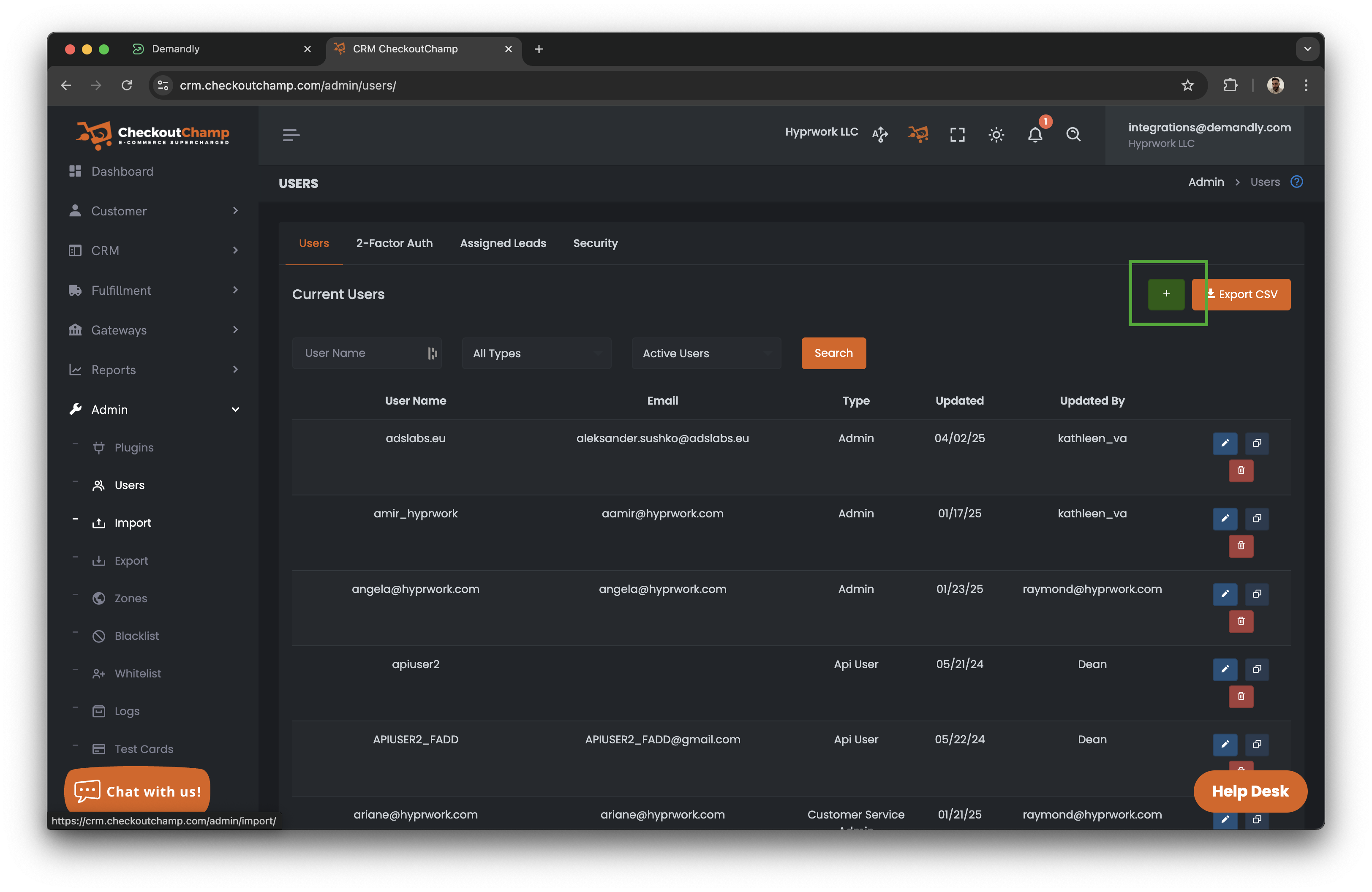
Click on “users” in the menu on the left.
-
You will be taken to the users list.
-
Click on the “green plus” button as seen below
Step 3: User details
-
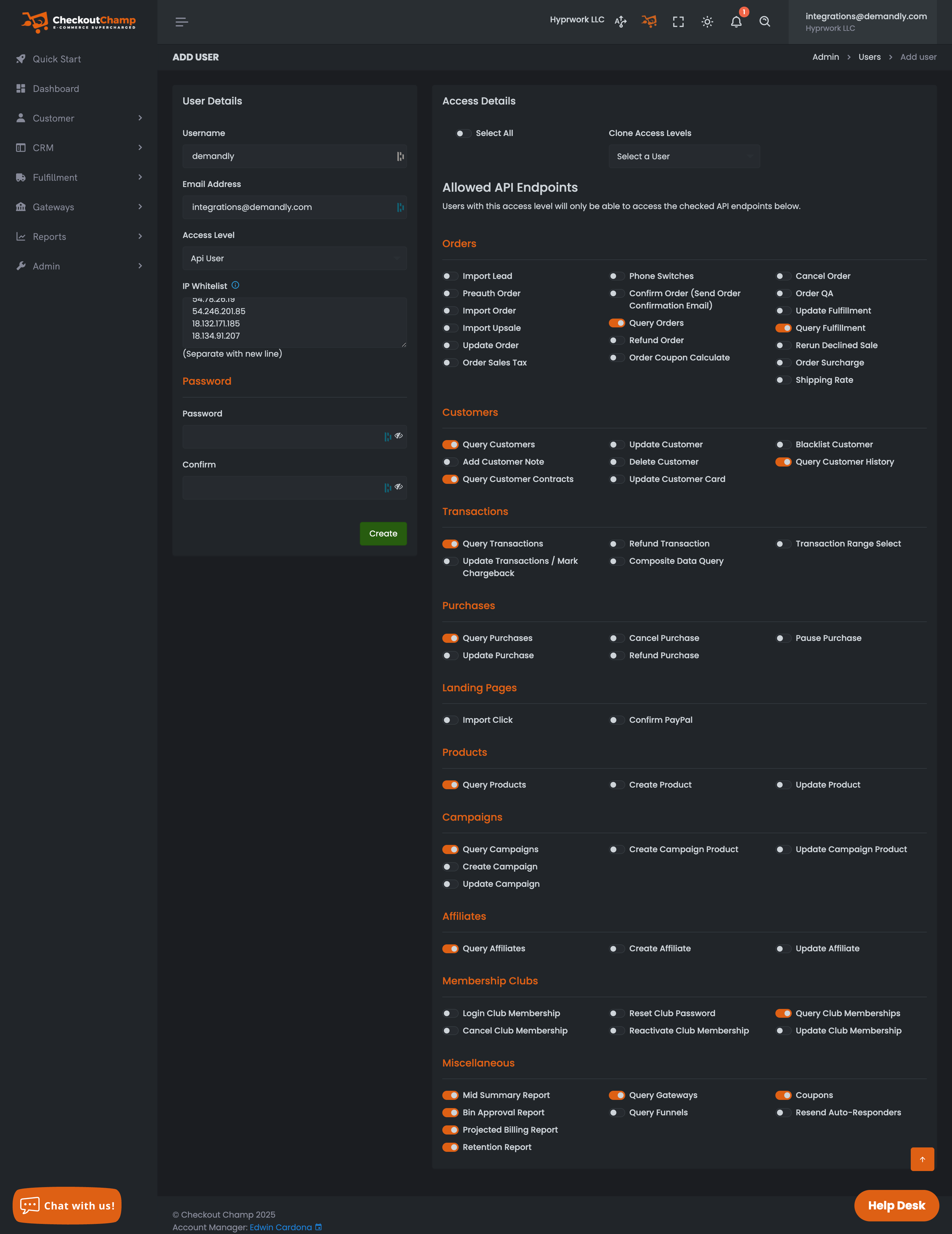
Set the username to “demandly”.
-
Set the email to “integrations+company-name@demandly.com” (make sure you note this down).
-
Set the access level to “api user”.
- Copy and paste these IP addresses into the “ip whitelist” field.
- 83.105.197.218
- 3.132.205.204
- 3.139.185.169
- 15.200.86.230
- 15.205.78.158
- 52.65.181.77
- 54.252.173.54
- 35.182.143.99
- 3.99.22.244
- 54.78.26.19
- 54.246.201.85
- 18.132.171.185
- 18.134.91.207
-
Set the password to a randomly generated password (make sure you note this down).
- Turn on these items in the “access details” section on the right.
- Query Fulfilment
- Query Orders
- Query Customers
- Query Customer History
- Query Customer Contracts
- Query Transactions
- Query Purchases
- Query Products
- Query Campaigns
- Query Affiliates
- Query Club Memberships
- Mid Summary Report
- Query Gateways
- Coupons
- Bin Approval Report
- Projected Billing Report
- Retention Report
Step 4: Complete the Connection
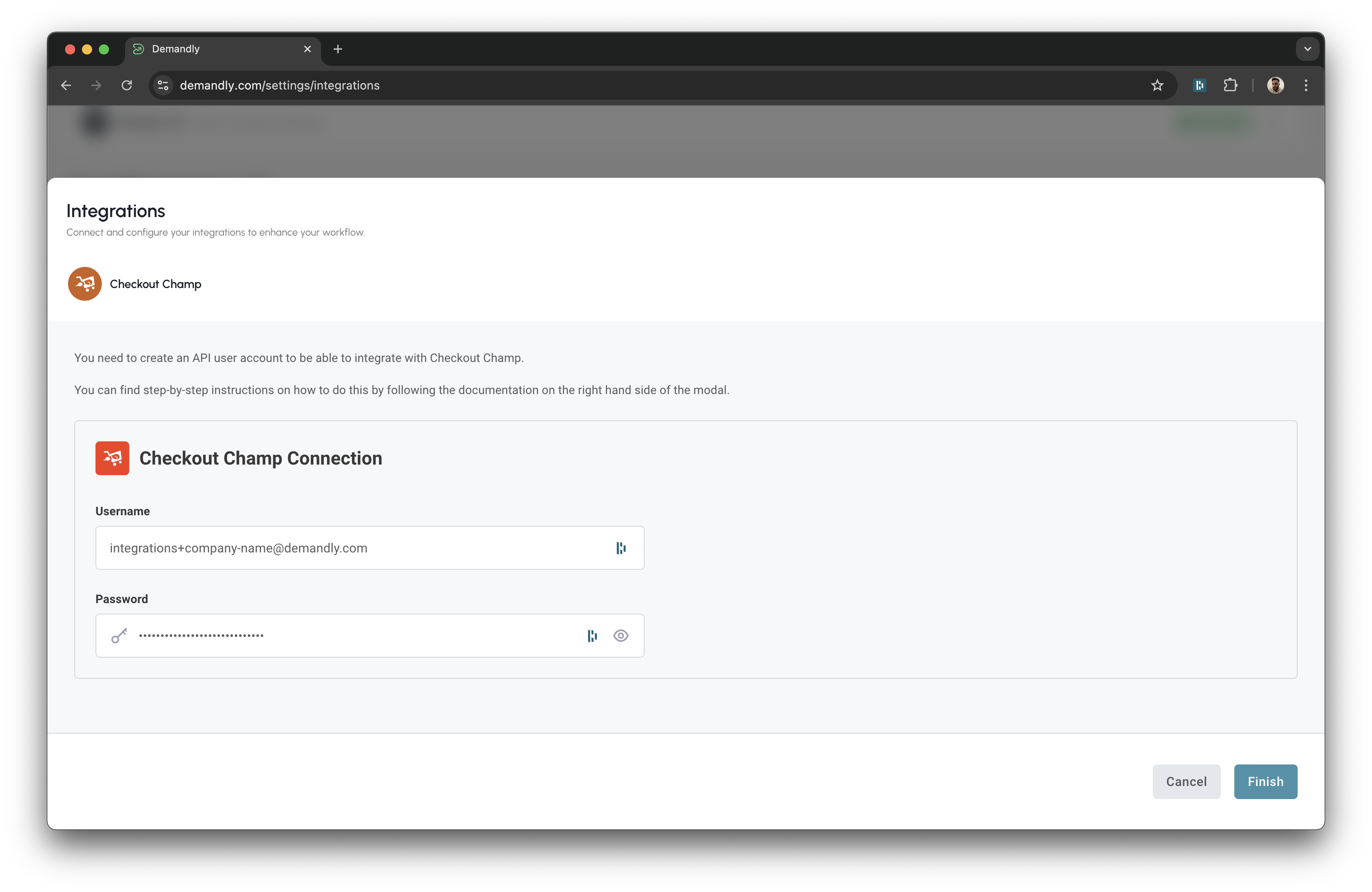
Return to the Demandly tab where you’ll see the “Checkout Champ Connection” screen:
-
In the Username field, enter the email address you used when creating the API user
-
In the Password field, enter the password you created
-
Click the blue “Finish” button in the bottom right corner
Step 5: Verify Your Integration
You’ll now see a confirmation screen showing your Checkout Champ integration status as “Running”. This confirms everything is working properly. Close this window by clicking the X in the top right corner to return to your integrations page.

That’s it! Your Demandly account is now successfully connected to your Checkout Champ account.
If you need to make changes to this integration later, you can return to the integrations page and reconfigure or deactivate it as needed.
Need Help?
If you’re experiencing issues with your integration:
- Contact our support team at support@demandly.com