Applovin
Step 1: Get your AppLoving report key
You’ll now need a Report Key from your AppLovin account.
-
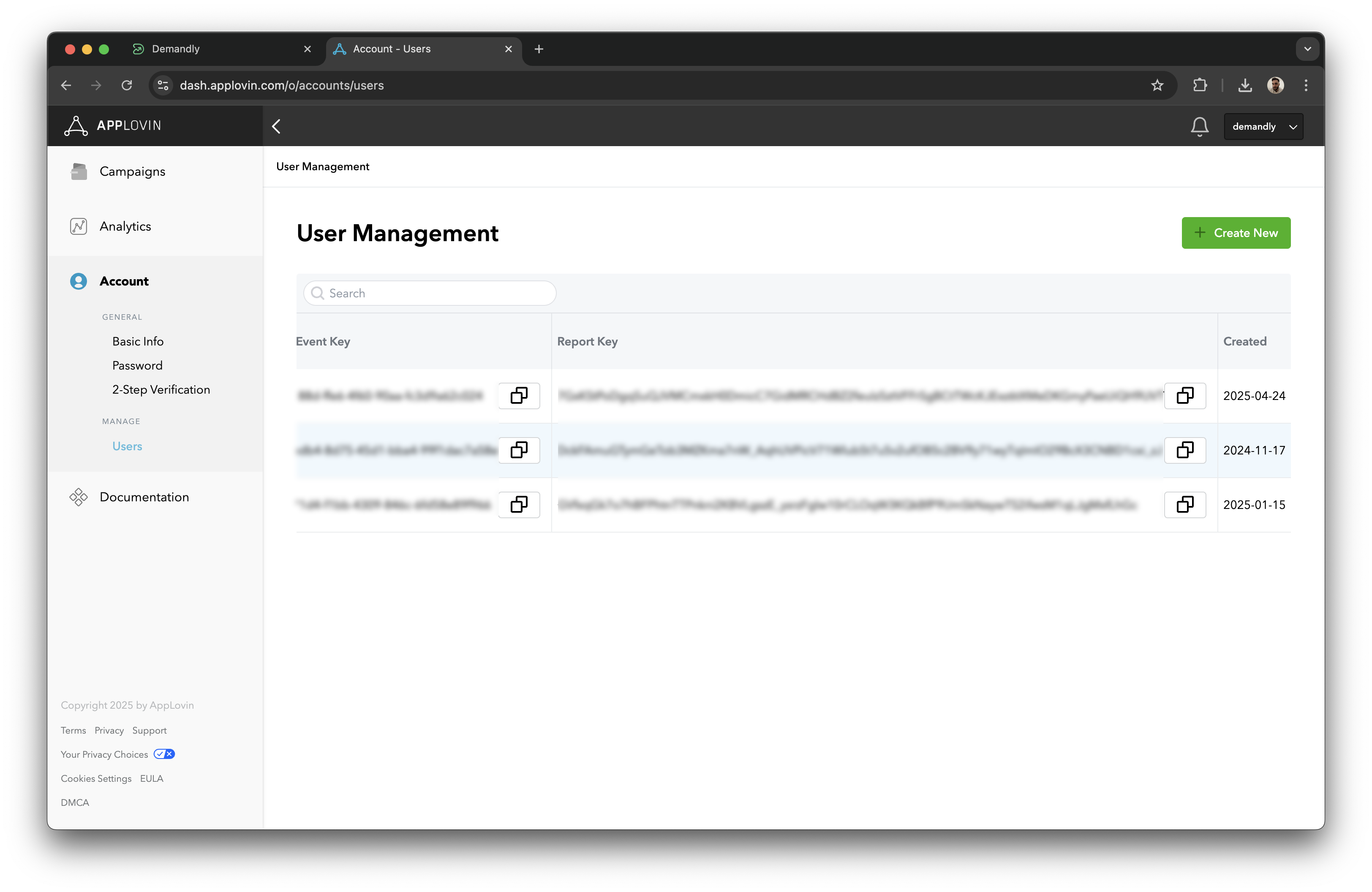
Open a new tab and go to: https://dash.applovin.com/o/accounts/users
-
Log into your AppLovin account if needed
-
Look for the Report Key column in the users table
-
Copy the appropriate Report Key (it will look like a long string of characters)
If you don’t have an existing AppLovin account or user, you can create one by:
-
Clicking the green “Create New” button in the top right
-
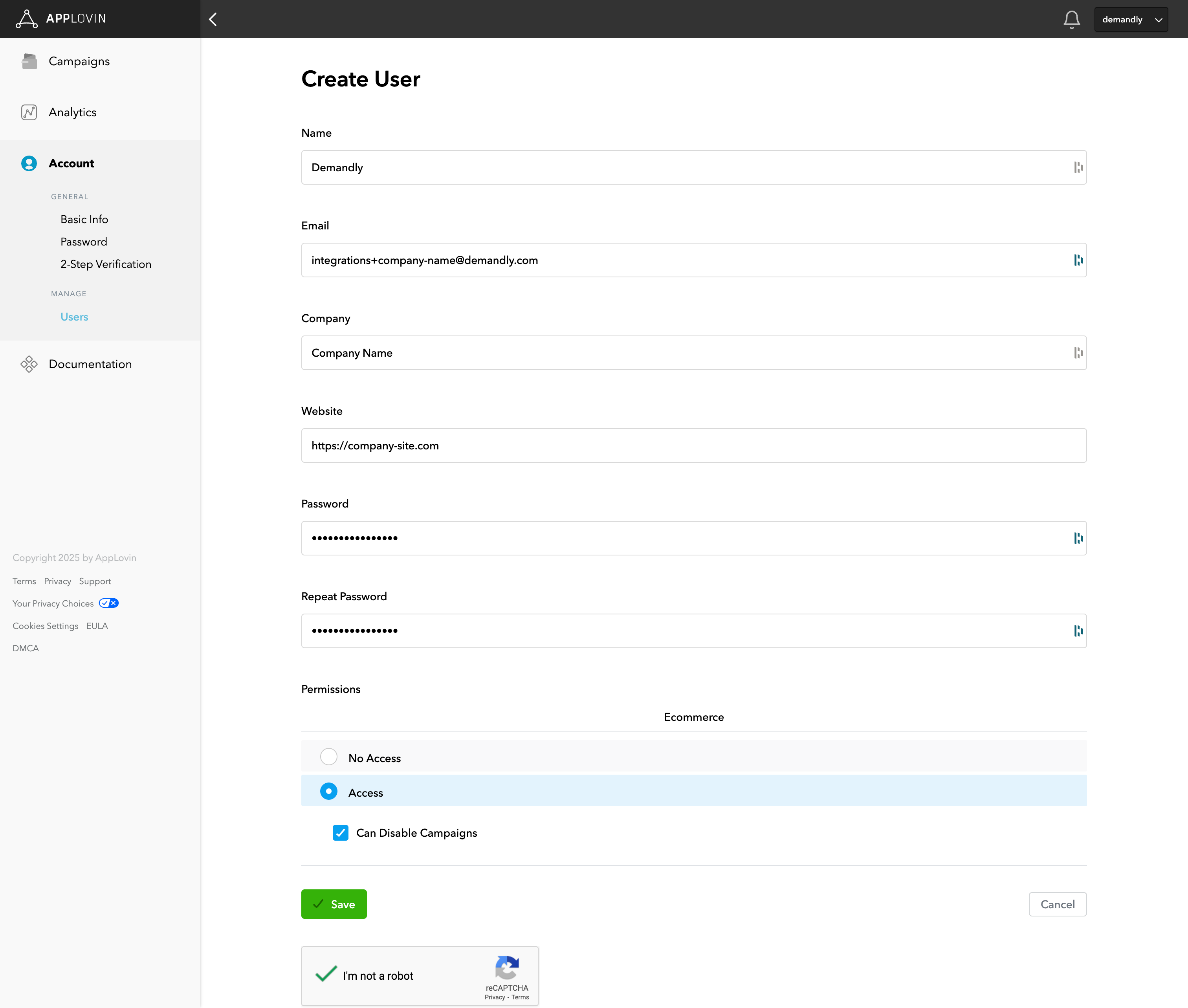
Filling out the required information (name, email, company, password)
-
Set the appropriate permissions, set “Access” and “Can Disable Campaigns” to true
-
Saving the new user
Step 2: Connect the Accounts
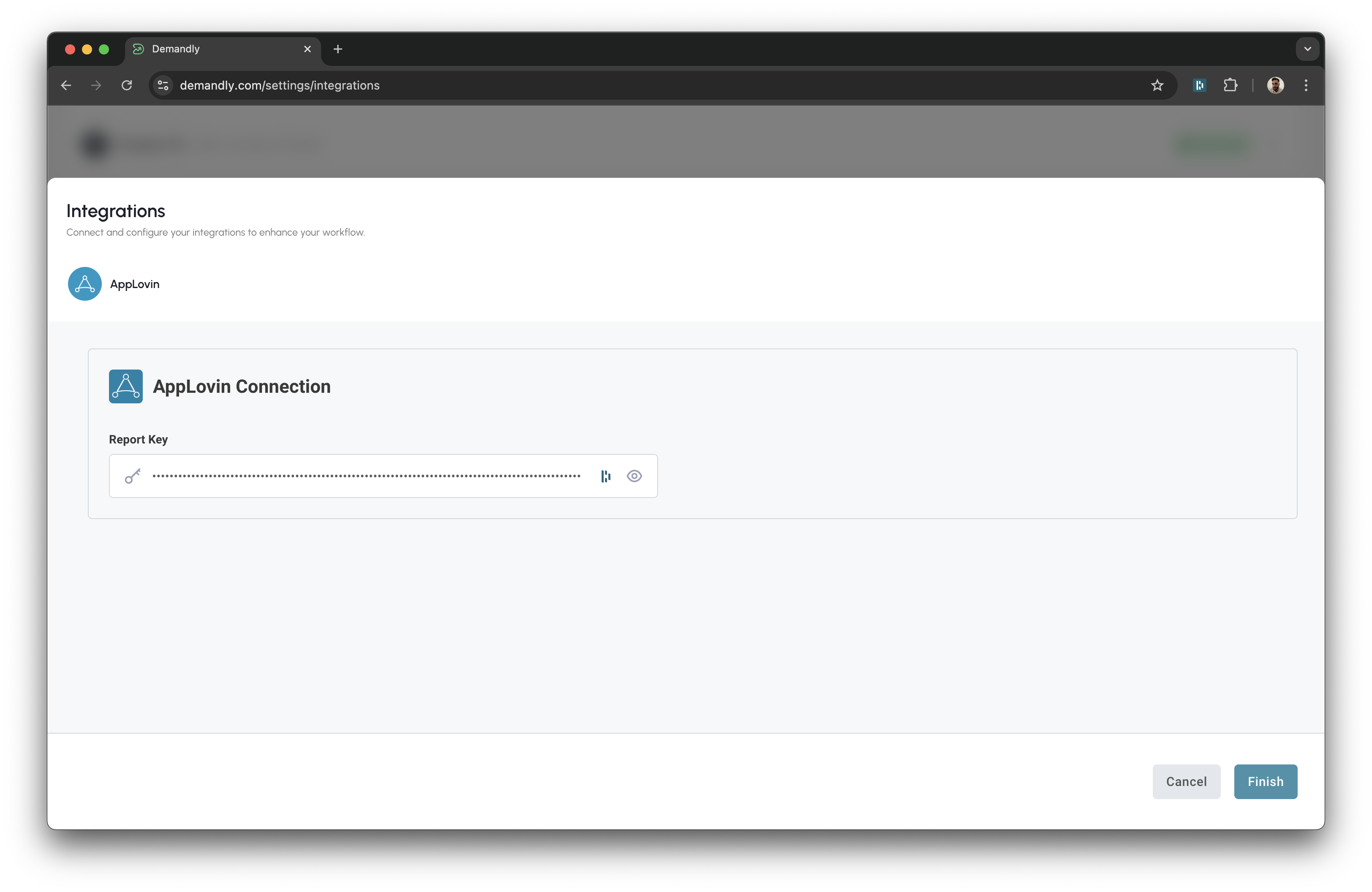
Return to the Demandly tab where you’ll see the “AppLovin Connection” screen with a field for your Report Key:
-
Paste the Report Key you copied from AppLovin into the field
-
Click the blue “Finish” button in the bottom right corner
That’s it! Your Demandly account is now successfully connected to your AppLovin account.
If you need to make changes to this integration later, you can return to the integrations page and reconfigure or deactivate it as needed.
Need Help?
If you’re experiencing issues with your integration:
- Contact our support team at support@demandly.com