Amazon Ads
Step 1: Connect your Account
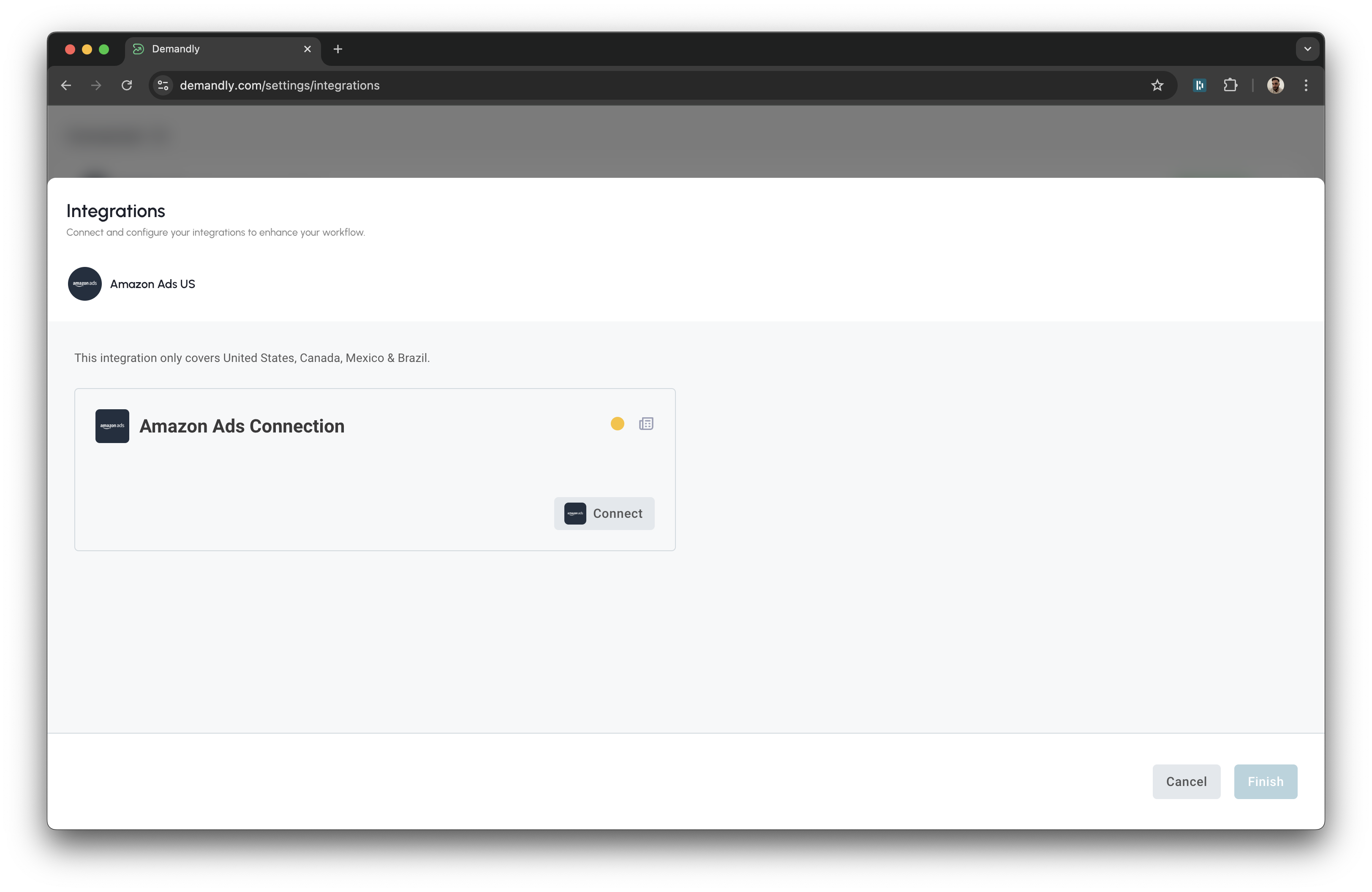
You’ll now see the “Amazon Ads Connection” screen with a “Connect” button.
Click “Connect” to begin the authorization process.
Step 2: Authorize in Amazon
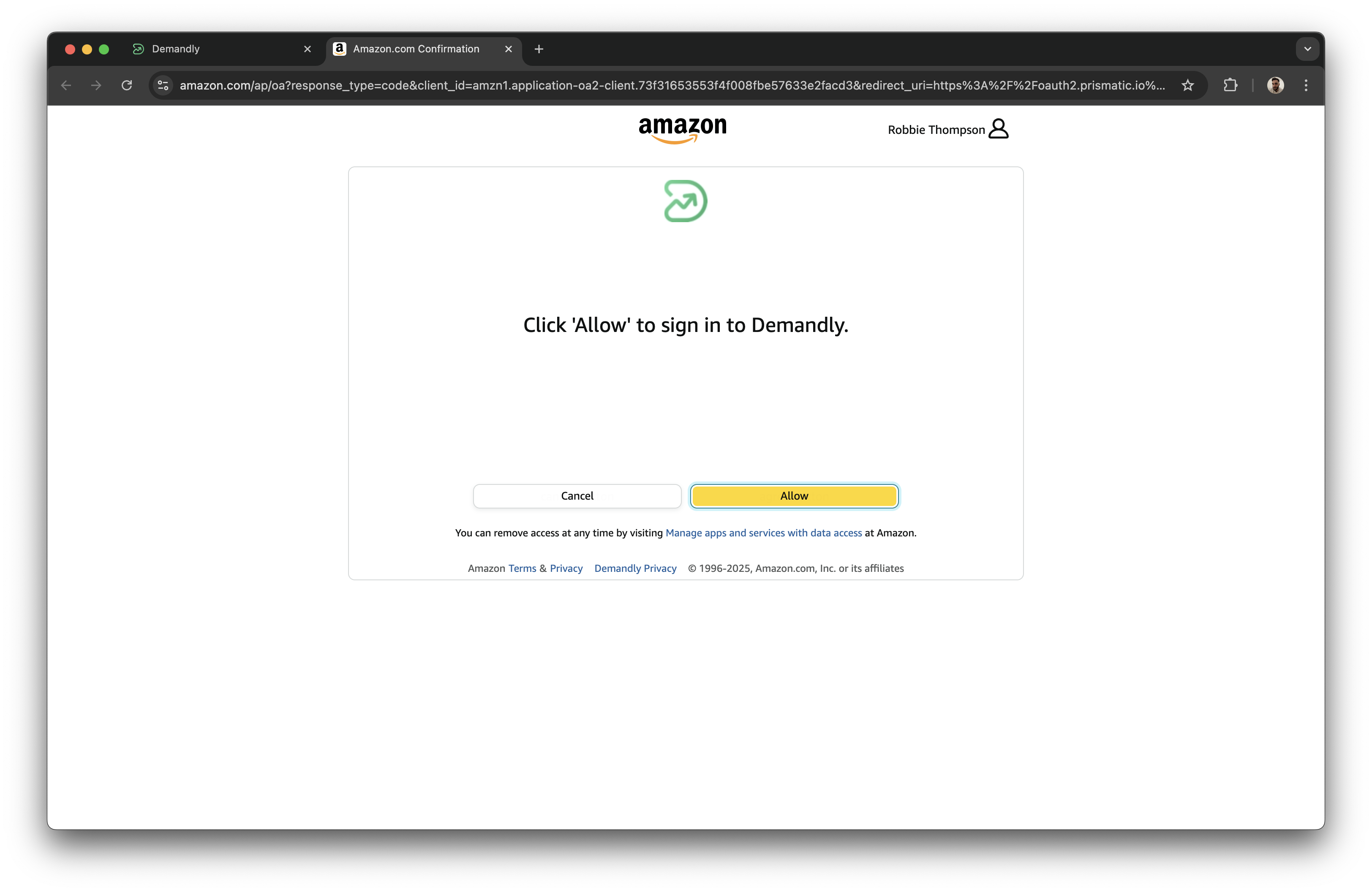
A new window will open, taking you to Amazon’s website.
Click “Allow” to sign in to Demandly and give permissions.
Step 3: Complete the Authorization
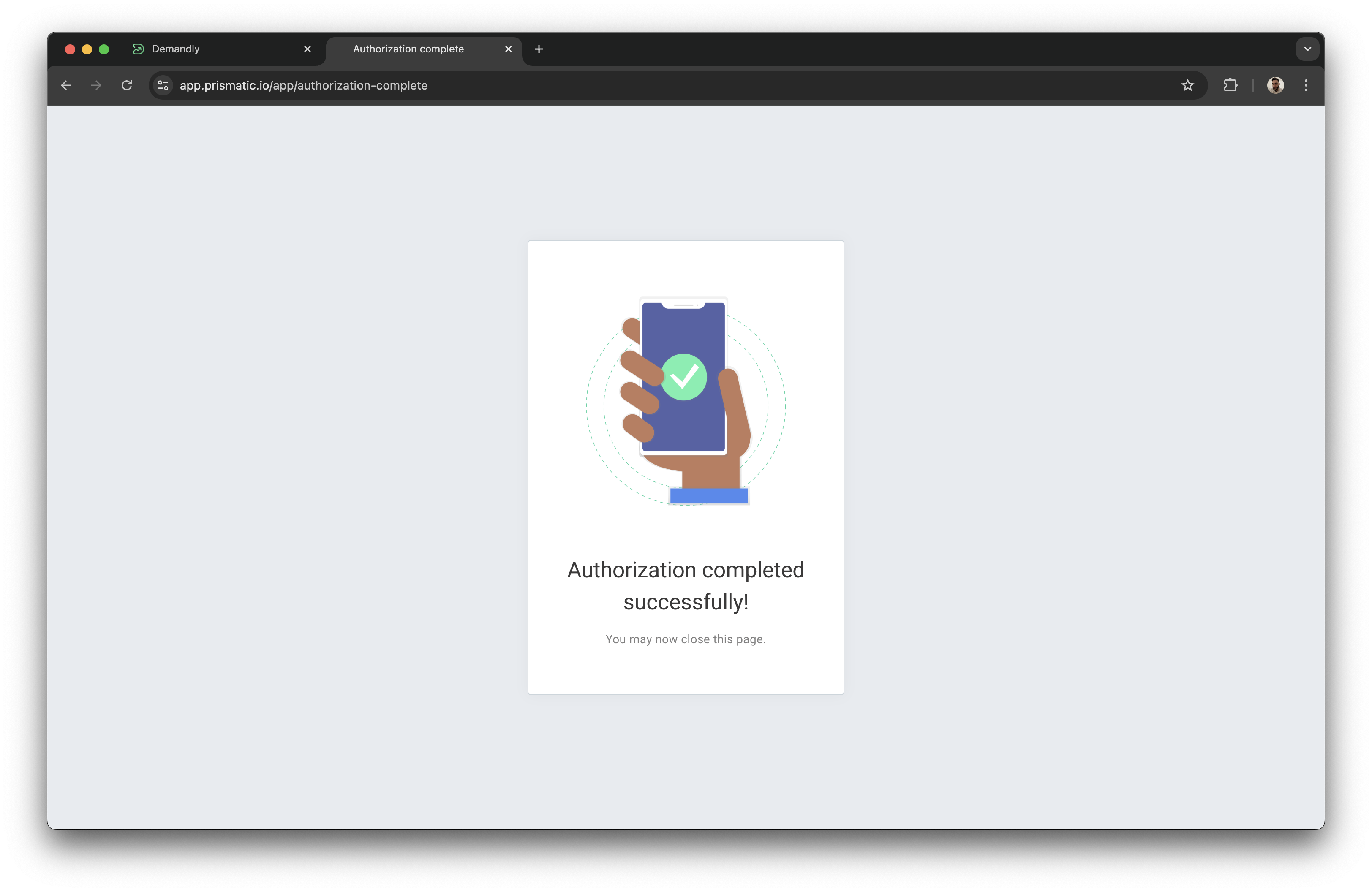
After clicking “Allow” you’ll see a confirmation page saying “Authorization completed successfully”
You can close this tab and return to Demandly.
Step 4: Finish the Setup
Back in Demandly, you’ll see the connection status has updated with a green dot, indicating success.
Click the “Finish” button in the bottom right corner.
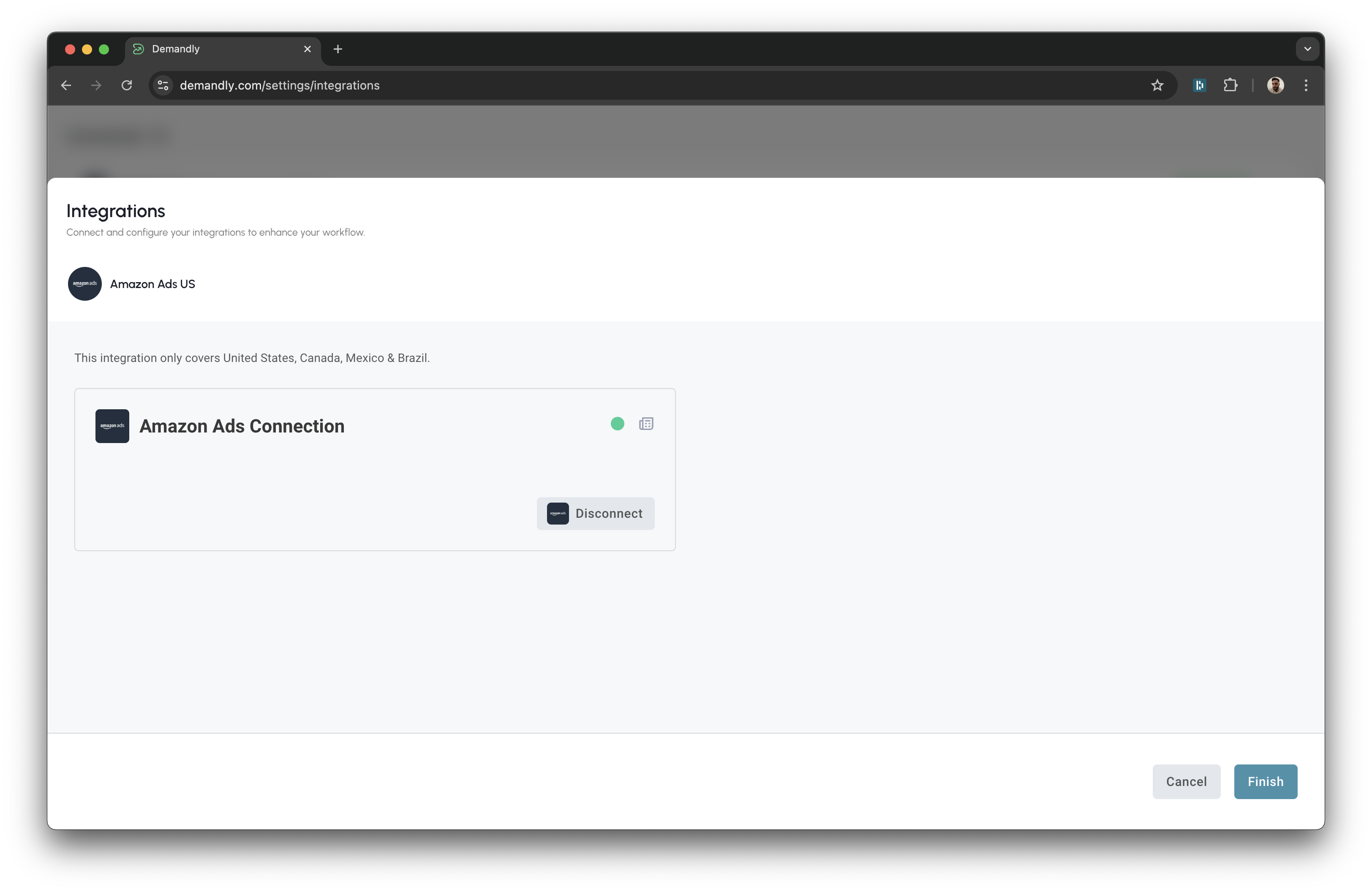
That’s it! Your Demandly account is now successfully connected to your Amazon Ads account.
If you need to make changes to this integration later, you can return to the integrations page and reconfigure or deactivate it as needed.
Need Help?
If you’re experiencing issues with your integration:
- Contact our support team at support@demandly.com